
Testing Buildprint's changes
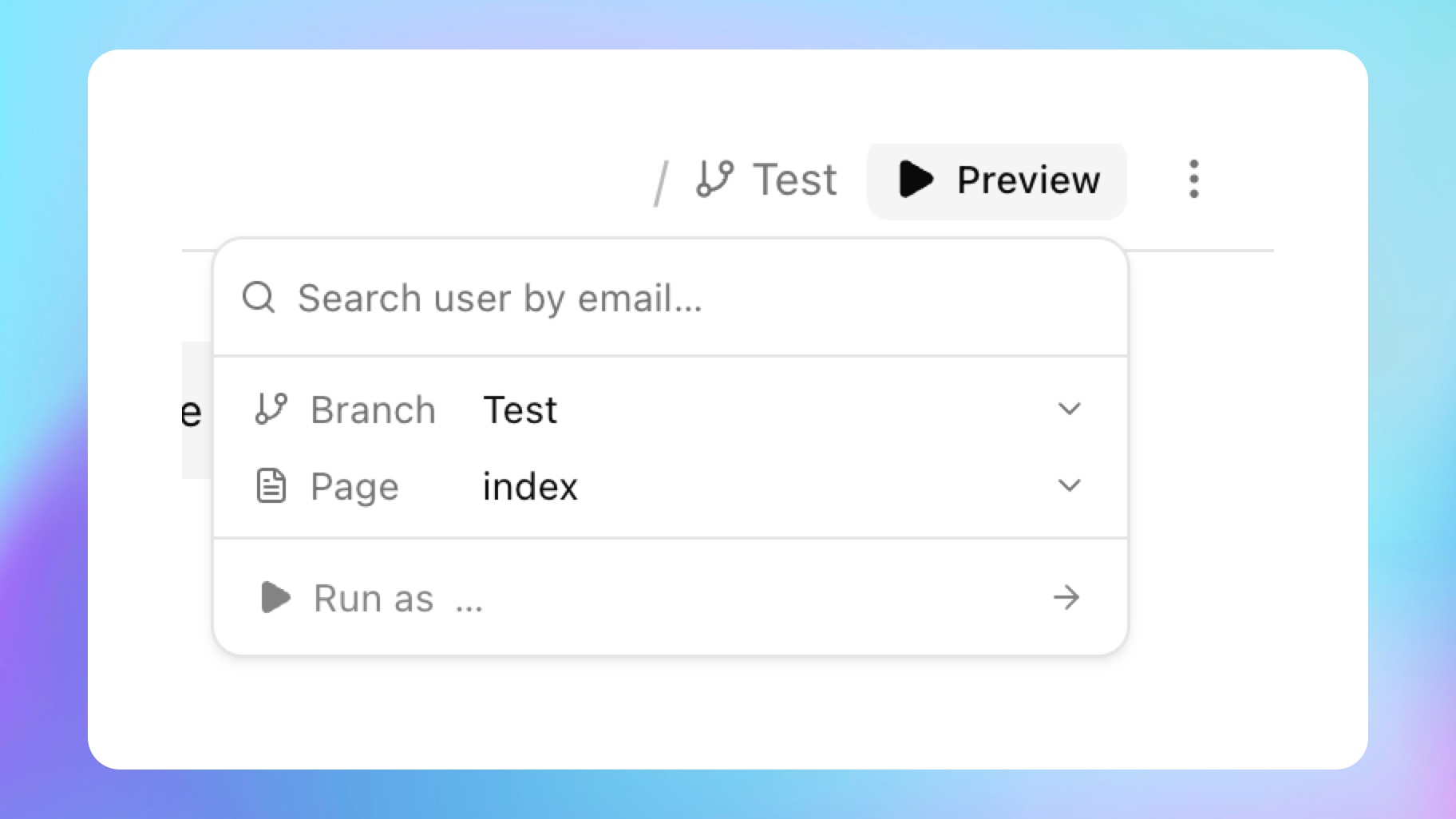
Preview lets you choose a branch, choose a page, search for a Bubble user, and open Bubble run mode as that user.
Ask Buildprint to /test
Use /test in the message composer to get Buildprint to test its own changes, in the browser, logged in as a real user.
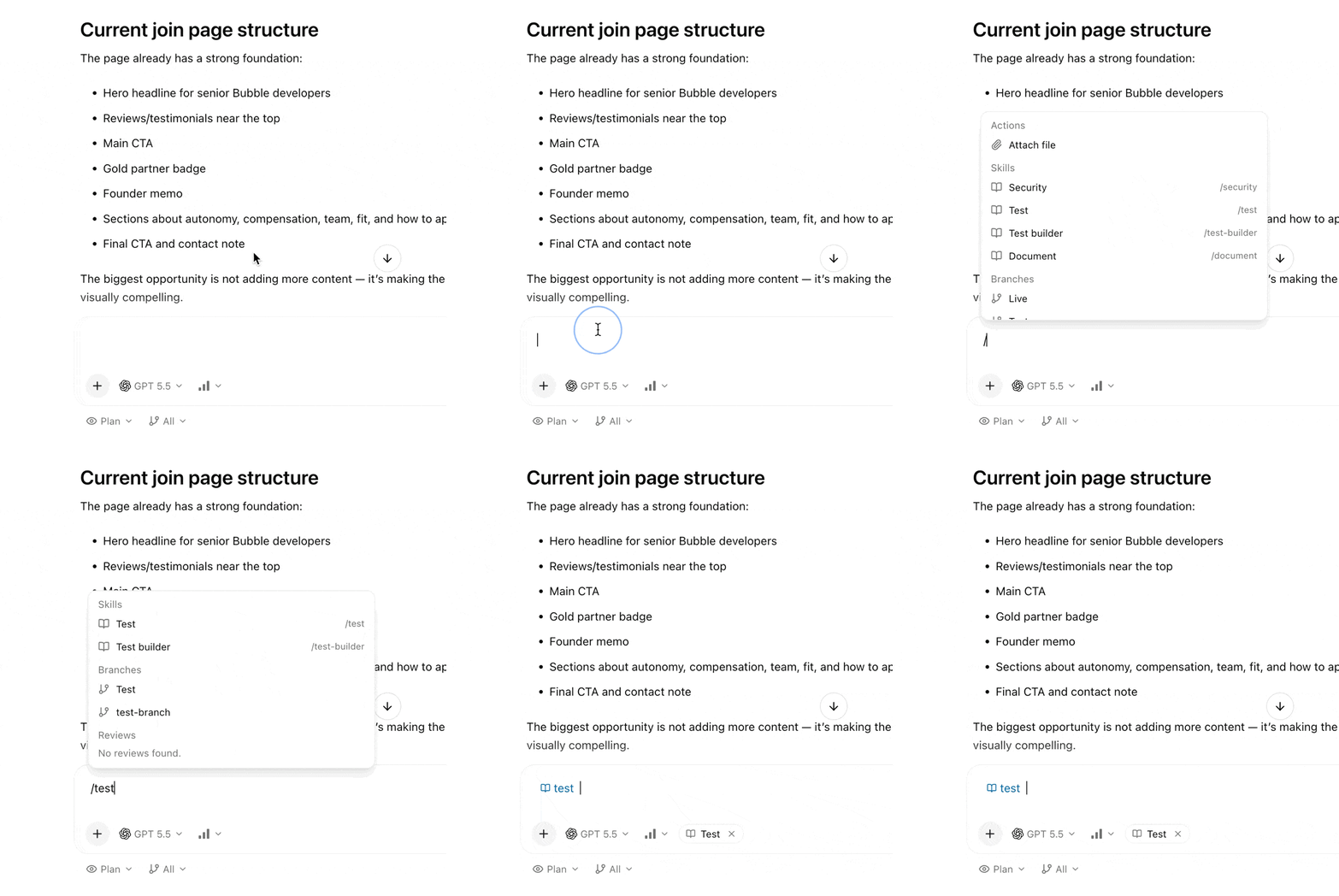
Run-as from Buildprint
From an agent chat, click Preview in the chat header.
Choose:
The branch to test.
The page to open.
The user to run as.
Preview is disabled until a user is selected.
Live and test data
Bubble separates live and development data.
When you switch between the live branch and a non-live branch, Preview clears the selected user because those user records come from different databases.
Search for the user again after switching between live and test branches.
Tips
Check the selected branch before testing.
If the page list looks stale, sync the branch.
If you changed branches, confirm the page did not reset to
index.If Run as fails, check your Bubble editor login and collaborator permissions.
Test important workflows with realistic user accounts and data.