
Check that it has not been revoked and still includes the required project. Create a new token if the original secret was lost.
Buildprint MCP, CLI and API access
Use Buildprint access tokens to connect an MCP client, the Buildprint CLI or your own software through the REST API.
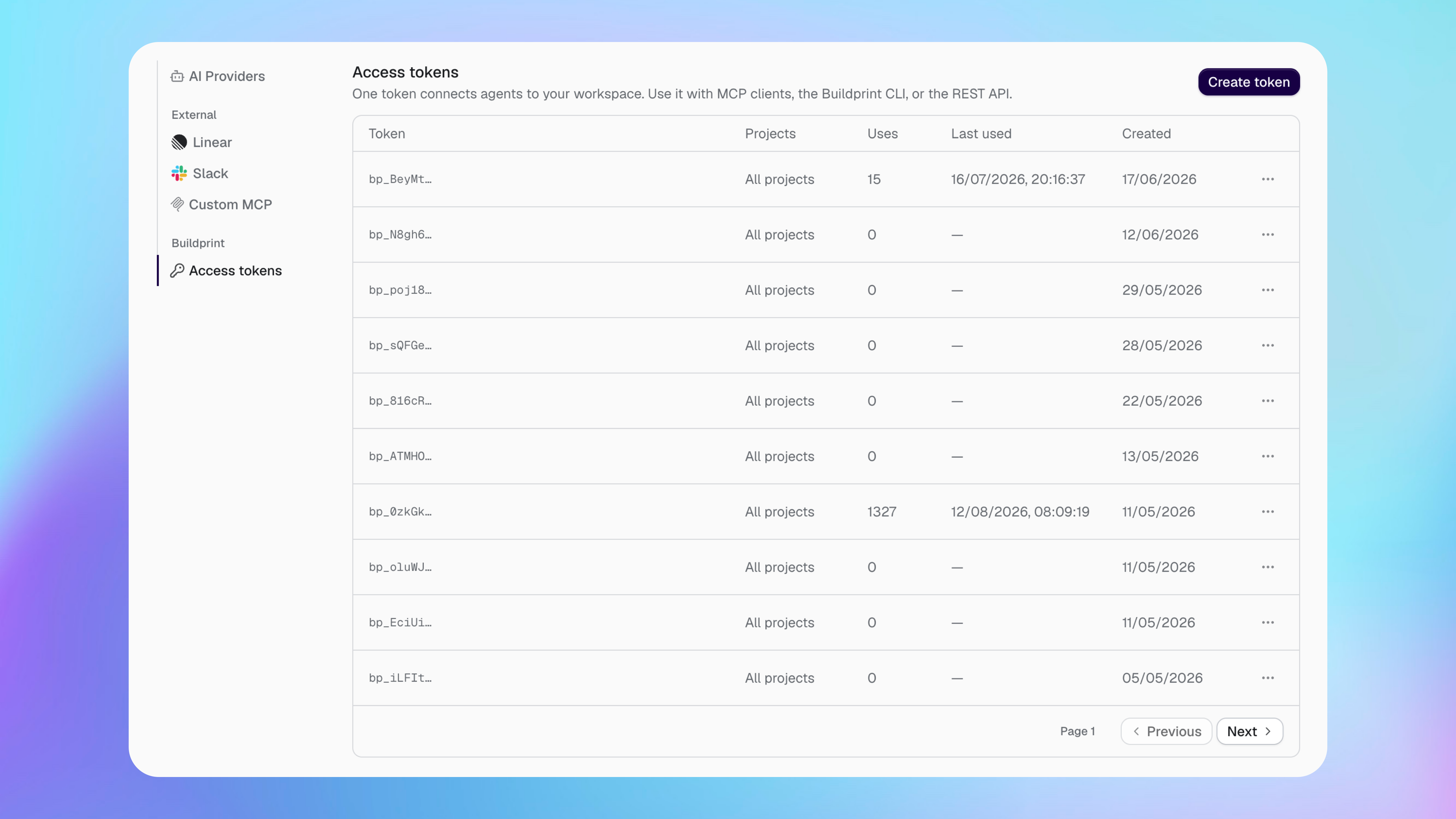
Choose an integration method
Create the token for the tool that will use it.
MCP connects AI clients such as ChatGPT, Claude and Cursor to Buildprint.
CLI lets you inspect and edit Bubble apps from a terminal.
API lets your own software call Buildprint's REST API.
These methods do not expose exactly the same actions.
If in doubt, and your agent supports it, ask it to install the Buildprint CLI. This is the best way to use Buildprint outside of Buildprint Web.
Authenticating with CLI and MCP
Both MCP and CLI support OAuth authentication. This means that when you add the MCP server, your MCP client will ask you to login and you'll be taken to buildprint.ai to complete login.
Authenticating via access token is supported but not recommended.
Choose project access
A token can access all projects in the workspace or only selected projects.
Use selected projects when one client does not need access to the complete workspace. The person creating the token must already have the required project access.
Manage tokens
The token list shows its project scope, number of uses, last-used time and creation date.
Revoke a token when a device, client or team member should no longer have access. Requests using that token stop working immediately.
Fix access problems
A token no longer works
A tool can read but not change data
Check the selected access method and project permissions. Public MCP data tools are read-only; use the CLI or API with editing access for supported data changes.
A client cannot access one project
Check the token's project scope and the Buildprint permissions of the person who created it.
Was this helpful?
Was this helpful?