
Introduction to tests
Tests are small TypeScript files in your app workspace. Your agent writes them, runs them in a real browser against your Bubble app, and Buildprint records every run.
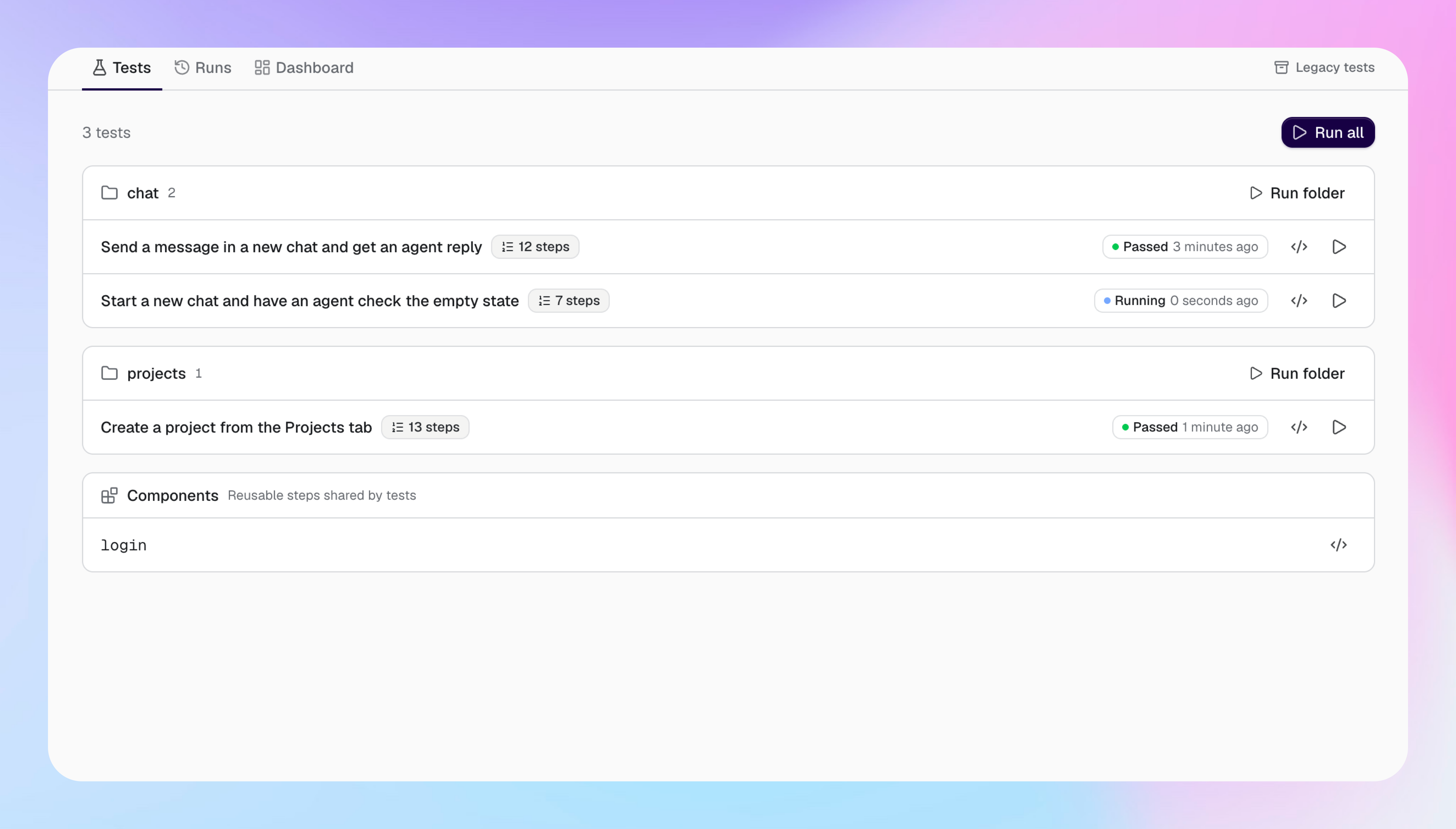
Why tests are files
Every step is a shell command. This makes test runs deterministic, fast, and cheap. AI agents are only used to begin a test, or respond to agent input steps that require qualitative judgement.
Tests live in the workspace next to your pages and workflows, so they version and deploy with your app.
Your agent can read, write, and debug them with the same tools it uses for the rest of the app.
What a test is
A test is one file under tests/ in the cloned workspace.
A test has:
Setup: steps that prepare data, for example clear a field on the tester's user.
Steps: what the test does and checks. Each step is one shell command. A step could be a browser verification, or an assertion that a specific record exists, for example.
Teardown: steps that clean up (e.g by resetting test data)
Requirements: elements, pages, or data types the test needs. If a branch does not have them, the test is inactive on that branch.
Steps use agent-browser to click, type, wait, and read the page. They can use the Buildprint CLI to search and change data. Anything you can do in a terminal can be a step.
Components
A component is a reusable sequence of steps, for example a login. Components live in tests/components/. A test calls a component like a function and passes parameters.
Agent steps
Some checks cannot be a command. For example, saying 'a chart looks right', or 'a layout is not broken'. For those, a test can have an agent step. The runner pauses, takes a screenshot, and hands the decision to your agent. The agent records pass, fail, or warning and the run continues.
Use agent steps only when a command cannot do the check to ensure tests remain fast and efficient.
Where tests run
Tests run on your machine or your agent's machine, through the Buildprint CLI. Each run targets one branch of your app in run mode. The runner uses the branch of the workspace you run from.
Buildprint stores each run so you can review runs in the app under Tests.
How it fits together
Ask your agent to write a test.
The agent applies the test to Buildprint just like other Bubble edits.
Ask the agent to run one or more tests.
Open Tests in Buildprint to see the results.