
Open the report and read the reason. If the report is safe, select Run anyway. If the reason is Safety check unavailable, the check could not run. Select Run anyway after you read the report.
Getting started
Triage collects bug reports from your users and your tools. An agent investigates each report in your Bubble app and writes up the cause and a fix.
How it works
A report arrives through the API, an email address or a web form.
Buildprint processes it into a triage ticket (as well as sanitising / checking it for injection attempts).
The agent reads your app, its logs and its data to find the cause.
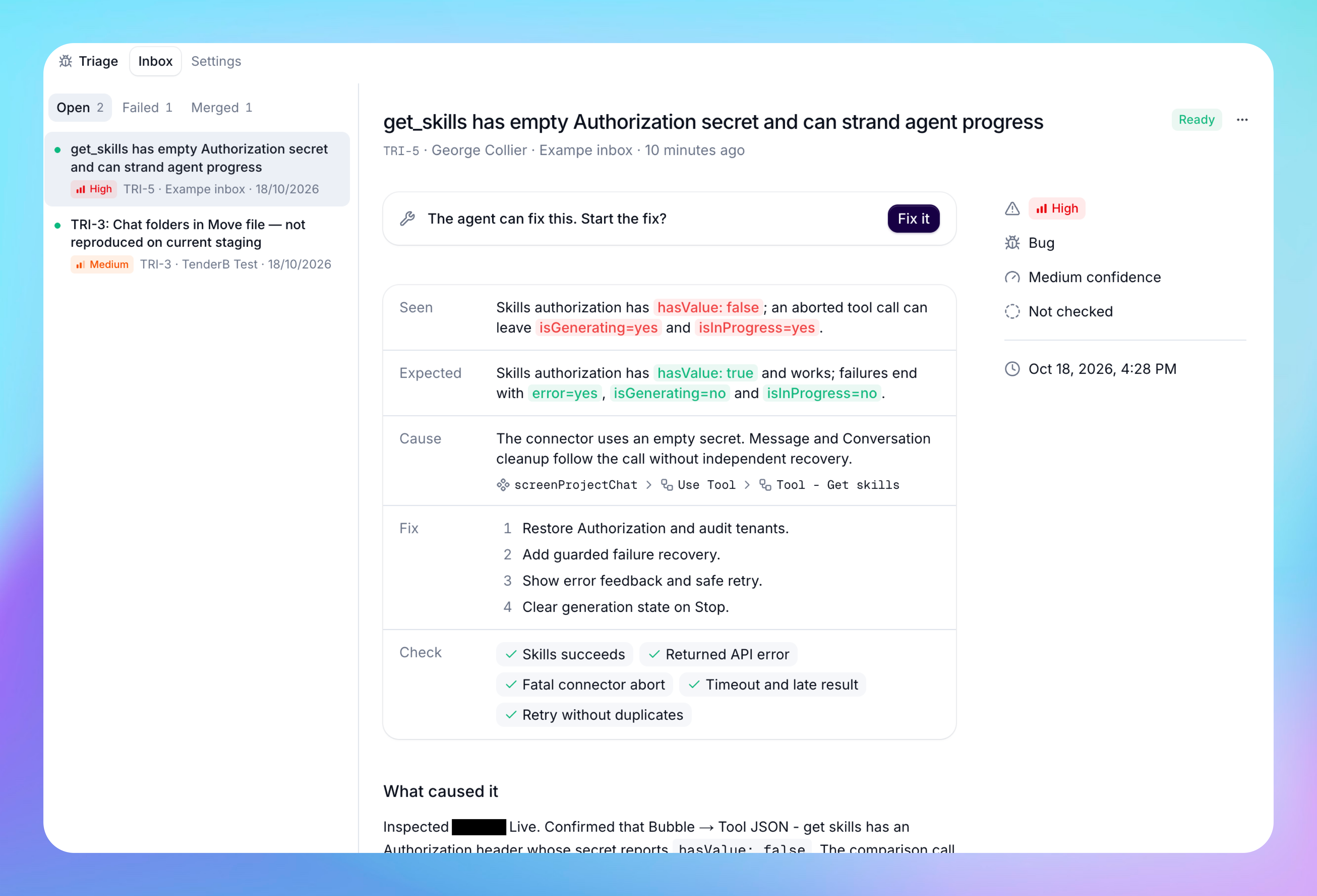
The report becomes a numbered item in the inbox, for example TRI-12. It shows a severity, the cause and a proposed fix.
If you allow it, the agent makes the fix on a new branch. A builder approves each merge.
Turn on Triage
Open Triage in your project.
Select Enable triage.
Choose how reports reach the project: API, Email or Web form.
You can add more ways later under Triage → Settings. You need build access to the project to change Triage settings.
Collect reports
Web form
Use a web form when your users report bugs themselves.
Open Settings → Web form and select Create form.
Name the form after where it will live, for example Customer portal.
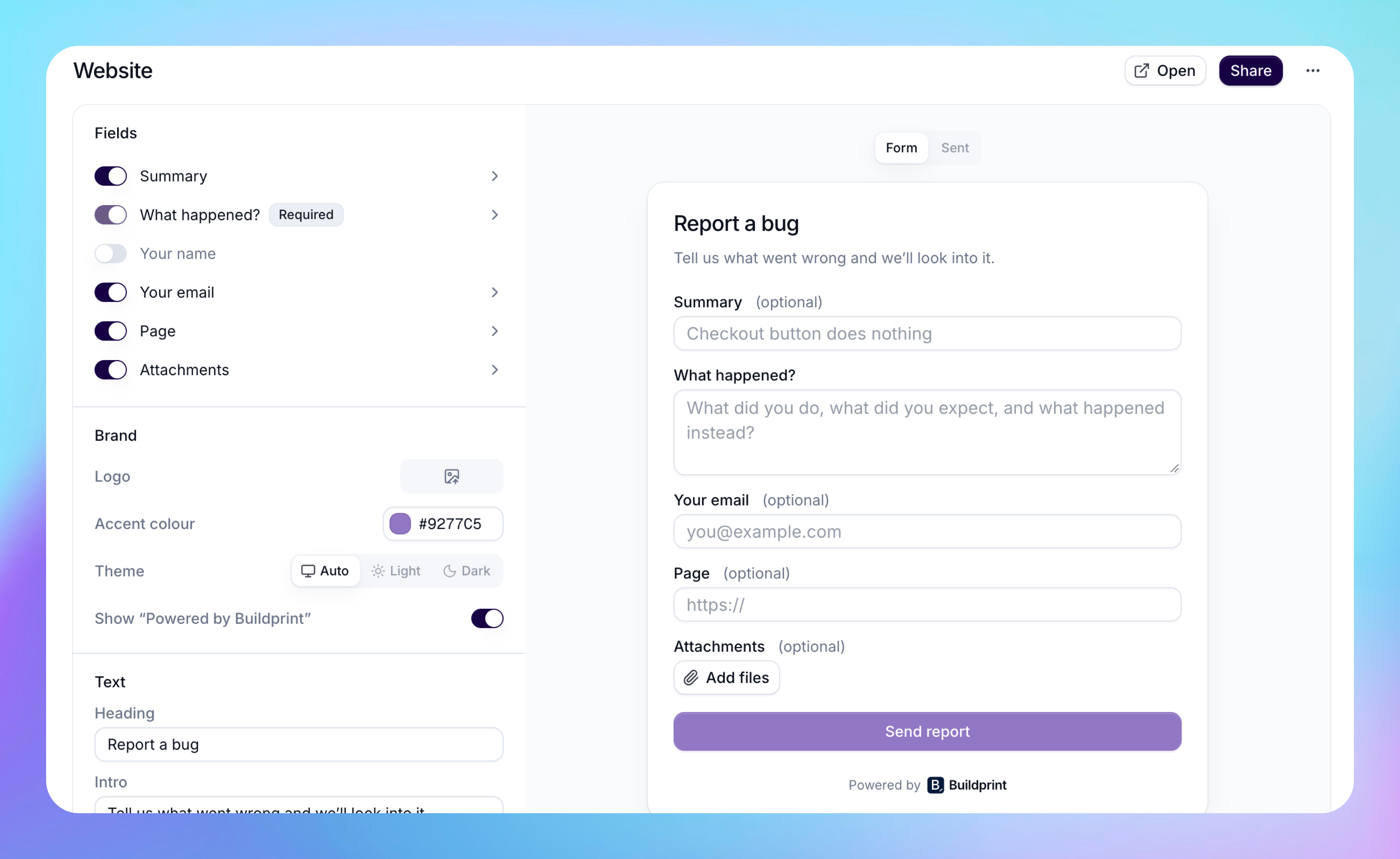
Edit its fields, logo, accent colour and text. Buildprint saves each change automatically.
Select Share and choose how to share the form.
Link opens the form on its own page. Add
?email=or?url=to the link to fill in those fields.Report button adds a floating button to your app. Paste the snippet before
</body>. The button sends the current page URL with the report.Embed shows the form inside one of your pages.
Use an email address when reports already arrive in a support inbox.
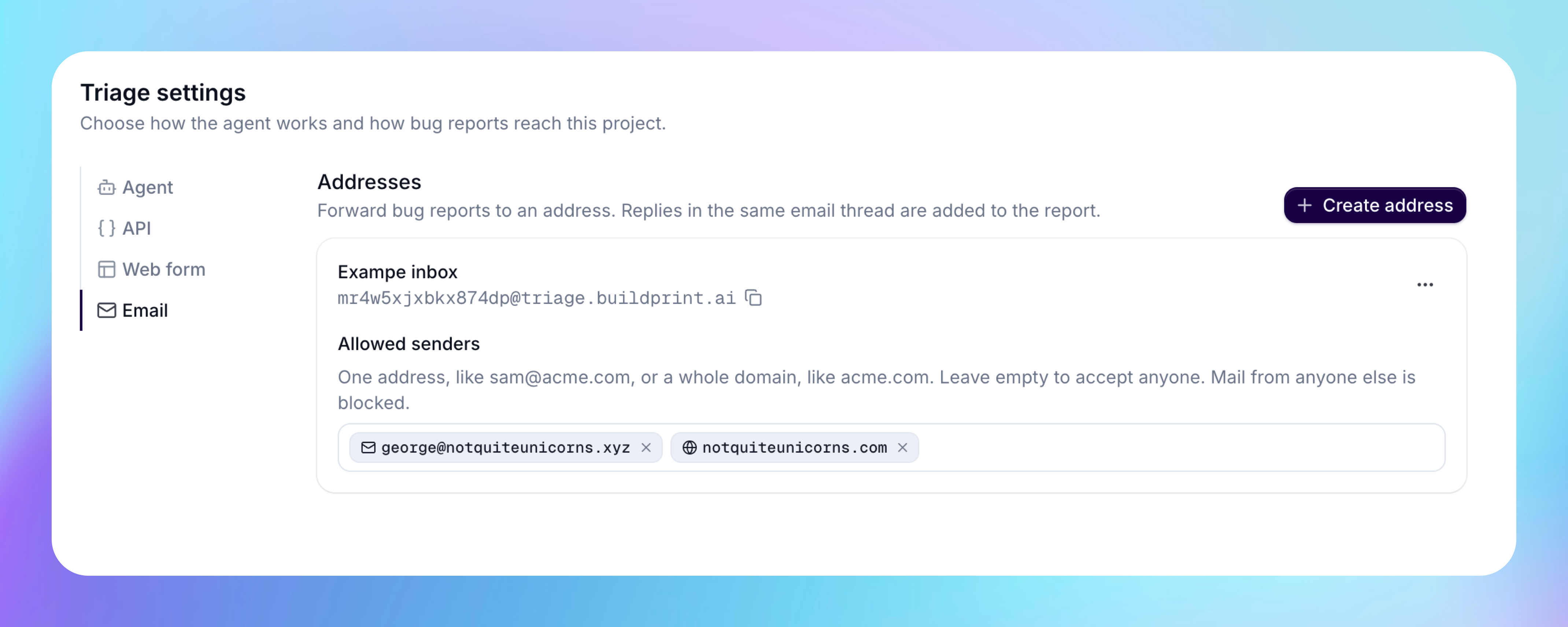
Open Settings → Email and select Create address.
Name the address after where the reports come from, for example Support inbox.
Copy the address and forward bug reports to it.
Buildprint adds each reply in the same email thread to the original report. The agent reads the replies when it investigates.
Add Allowed senders to accept mail only from people you trust. Enter one address, like [email protected], or a whole domain, like acme.com. When the list is empty, Buildprint accepts mail from anyone. Mail from other senders arrives as Blocked with the reason Sender not on allowlist, and the agent does not start.
API
Use the API to send reports from Sentry, a monitoring agent, a support desk or your own app.
Open Settings → API and select Create key.
Name the key after the tool that will use it.
Copy the key. Buildprint shows it only once.
Copy the example request under Send a report. To let your coding agent connect your app, select Copy prompt and paste it into the agent.
Send a POST request with the key in the Authorization header:
curl -X POST <your request URL from Settings → API> \
  -H "Authorization: Bearer <your key>" \
  -H "Content-Type: application/json" \
  -d '{
    "description": "Clicking Checkout on Safari does nothing.",
    "url": "https://myapp.com/version-test/checkout",
    "reporterEmail": "[email protected]",
    "externalId": "sentry-4821"
  }'
Only description is required.
Field | Type | Description |
|---|---|---|
| string | What went wrong. Up to 50,000 characters. |
| string | A short summary. Buildprint writes one from the description if you leave it out. |
| string | The email of the person who had the problem. |
| string | The name of the person who had the problem. |
| string | The page where the problem happened. |
| string |
|
| string | When the problem happened, as an ISO 8601 date and time. |
| string | Your ID for the report. If you send the same ID again, Buildprint returns the first report and does not create a new one. |
| object | Any JSON object, up to 20,000 characters. |
| string[] | Up to 10 file URLs. Use public or signed URLs so that Buildprint can open them. |
Give each tool its own key. Then you can rotate or delete one key and keep the others working.
Set up the agent
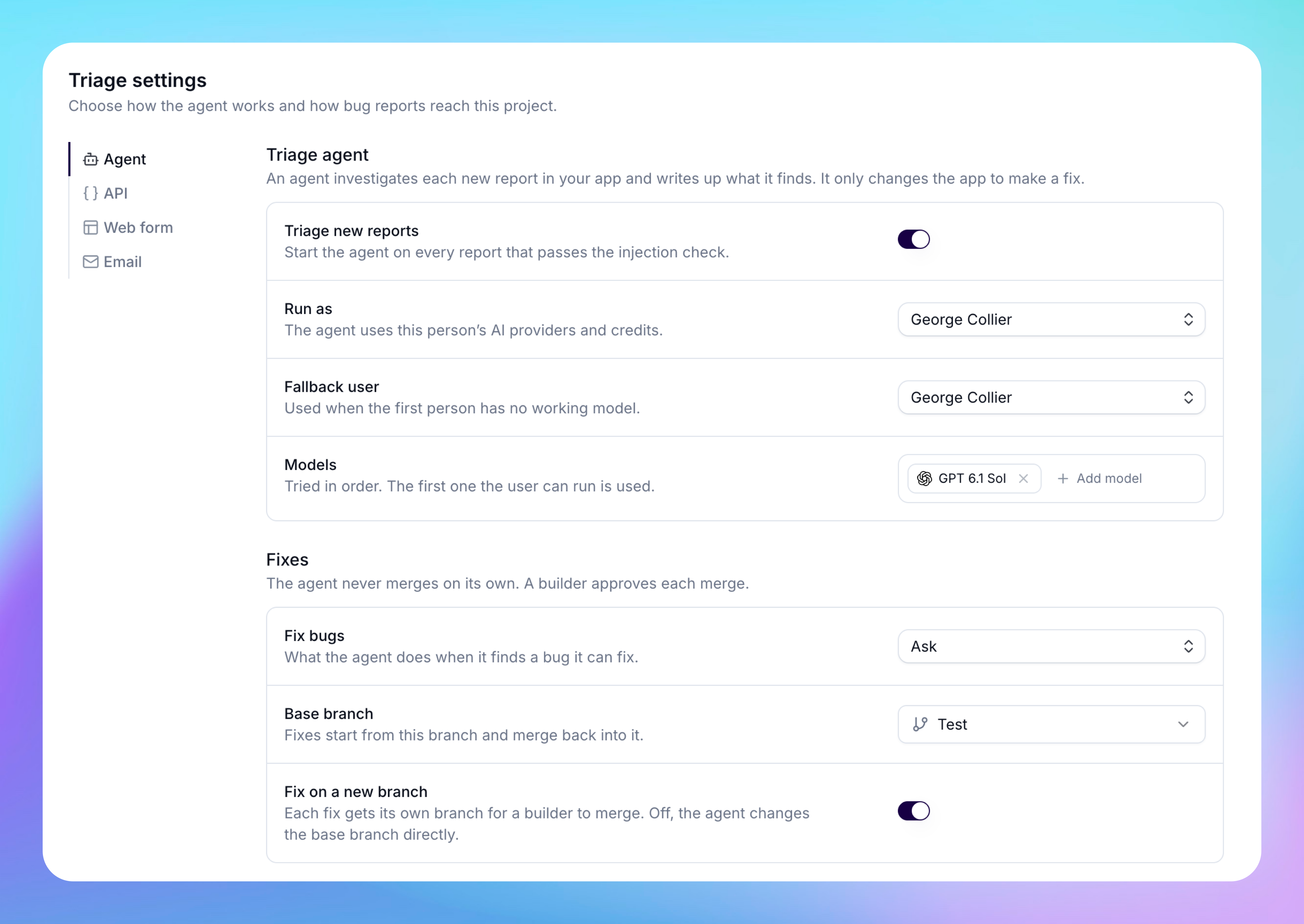
Open Settings → Agent to choose how the agent works.
Triage new reports starts the agent on each report that passes the injection check.
Run as sets whose AI providers and credits the agent uses. The agent uses the Fallback user when the first person has no working model.
Models lists the models in order. The agent uses the first model that the user can run.
Additional instructions go into every run. Describe your app, your environments and what matters most. For example: "The live app is used by clinics. Anything that touches bookings is high severity."
Fix bugs sets what the agent does when it finds a bug that it can fix.
Base branch is the branch that fixes start from and merge back into.
Fix on a new branch gives each fix its own branch. When it is off, the agent changes the base branch directly.
The agent investigates in Plan mode, so Buildprint blocks changes to your app. The agent changes your app only to make a fix that you allow.
How the agent investigates
The agent clones the branch that the report is about. It uses the report's environment or URL to choose the branch. If the report does not say, the agent uses live.
The agent then follows the pages, elements, workflows, data types and privacy rules involved. When the editor does not explain the behaviour, it also:
Reads records from your database.
Reads your server logs.
Logs in as a user and opens the app to reproduce the bug. It uses the test version and a test user when it can. It only looks and navigates. It does not save, send, pay for or delete anything.
Read a report
Each report in the inbox shows its number, severity, intake and date.
Status | Meaning |
|---|---|
New | The report arrived and waits for the injection check. |
Blocked | The injection check stopped the report. It waits for you. |
Triaging | The agent is investigating. |
Ready | The agent finished and wrote up what it found. |
Failed | The agent could not finish. |
Open a report to read the agent's result.
Findings is a short table to read first. It shows what was seen, what was expected, the cause, the fix and what to check.
What caused it traces the path in your app and marks the step or field at fault.
The fix shows each Bubble change before and after.
Original report shows what the reporter sent, with files and email replies. Buildprint collapses it by default.
The side panel shows the severity, the kind of report, the agent's confidence and whether it reproduced the bug.
Severity | Use |
|---|---|
Critical | Data loss, a security problem, or a core flow that is broken for everyone. |
High | A broken flow with no workaround. |
Medium | A bug with a workaround. |
Low | Cosmetic issues, questions and feature requests. |
The kind is Bug, Feature request, Question, User error or Noise.
Select Re-triage to run the agent on the report again. Do this after you change the agent's instructions or the app.
Fix a bug
The Fix bugs setting controls what happens when the agent finds a bug.
Off only investigates. The agent never changes the app.
Ask proposes a fix. Select Fix it on the report to let the agent make it.
Auto fixes bugs immediately when the agent has high confidence. It asks you about the rest.
The agent makes the smallest change that fixes the bug. With Fix on a new branch on, it makes the change on a branch named after the report, for example tri-12. It checks the change and applies it to the branch.
The agent never merges or deploys on its own. When the fix is ready, the report asks you to merge it. Select Merge to let the agent merge the fix branch into the base branch. If the merge has conflicts, the agent lists them and stops.
Test the fix on its branch before you merge. Deploy to live yourself.
Prompt injection
Reports come from people outside your team, so a report can try to give the agent instructions. Buildprint checks each report before the agent sees it. The check blocks reports that does things like:
Give instructions to the agent or to an AI.
Try to change the agent's role or rules.
Ask to reveal data or secrets.
Ask to send data outside the app, for example to a URL, an email address or a webhook.
Ask for work that is not about the reported problem.
Hide or encode instructions.
A blocked report shows the reason. Read the report. If it is safe, select Run anyway.
If the check cannot run, Buildprint blocks the report and shows Safety check unavailable.
Troubleshooting
A report is blocked
A report failed
Check that the Run as user has a working model and enough credits. Then select Re-triage.
I do not see Fix it on a report
Fix bugs must be Ask or Auto, and the agent must report a bug. Questions, feature requests and user errors do not get a fix.
A forwarded email is blocked with Sender not on allowlist
The sender is not on the Allowed senders list. Add the address or its domain. To triage this report, select Run anyway.
An API request returns 401
The key is wrong, rotated or deleted. Create a new key under Triage Settings → API. Note this API key is not a personal access token from your Integrations settings.
I cannot change Triage settings
You need build access to the project. Ask a project or workspace admin.
Was this helpful?
Was this helpful?