
Check the email address, then resend the pending invitation. Ask the recipient to check their spam or junk folder.
Members, roles and project access
Workspace admins can invite people, choose which Bubble projects they can access and change or remove that access later.
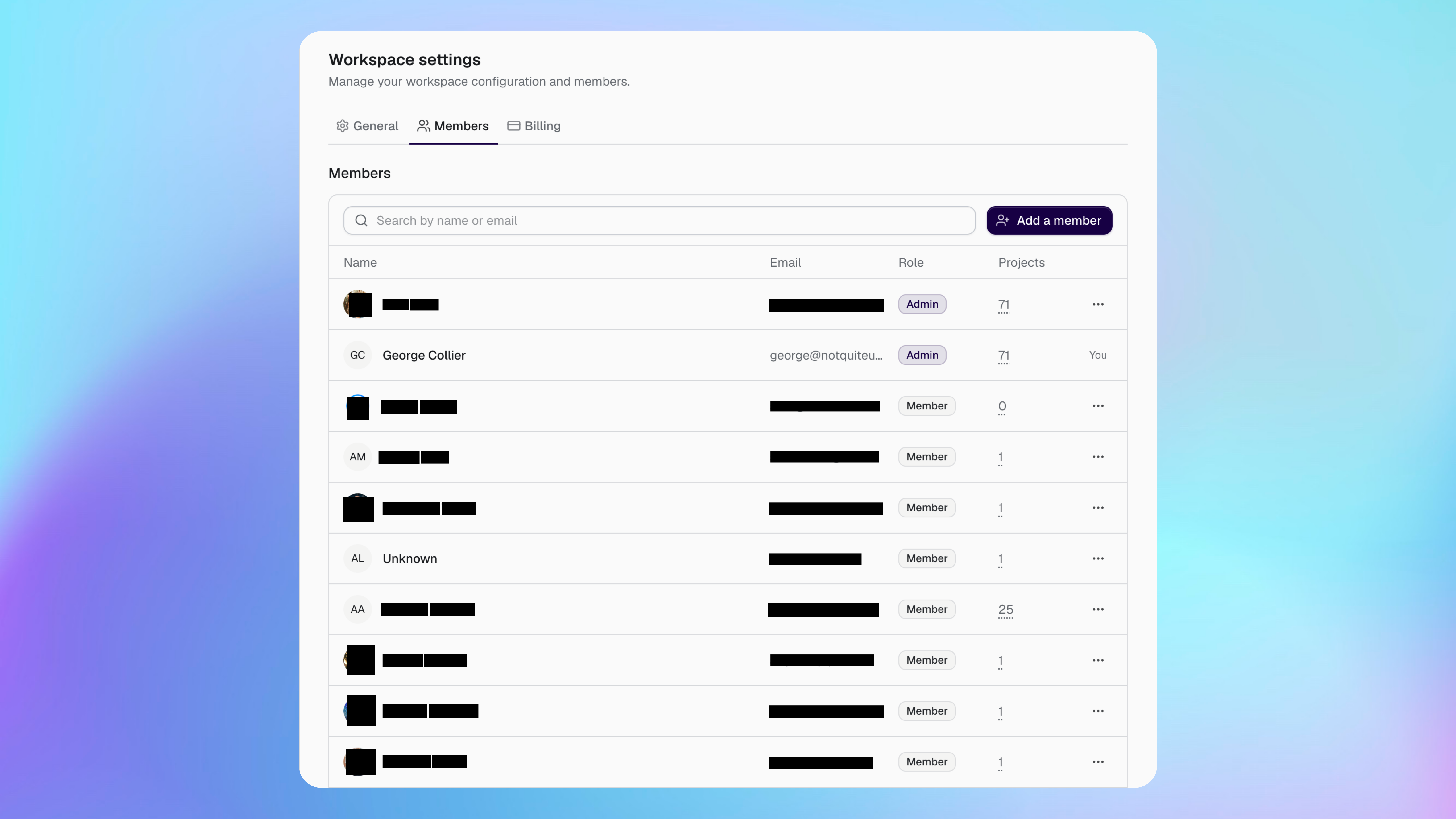
Understand workspace and project access
Buildprint controls access at two levels.
Workspace role controls what someone can manage across the workspace.
Project access controls what they can do inside each Bubble app project.
A workspace Admin can manage workspace settings, members, billing, integrations and every project. Admins automatically have project Admin access to all projects.
A workspace Member can use the workspace and create projects, but only sees projects they have been given access to.
Guest workspace access is being deprecated on 1 September 2026. New workspace invitations join as billable Members with the project access you select.
Invite a member
Workspace admins can invite a teammate or client and set their project access before they join.
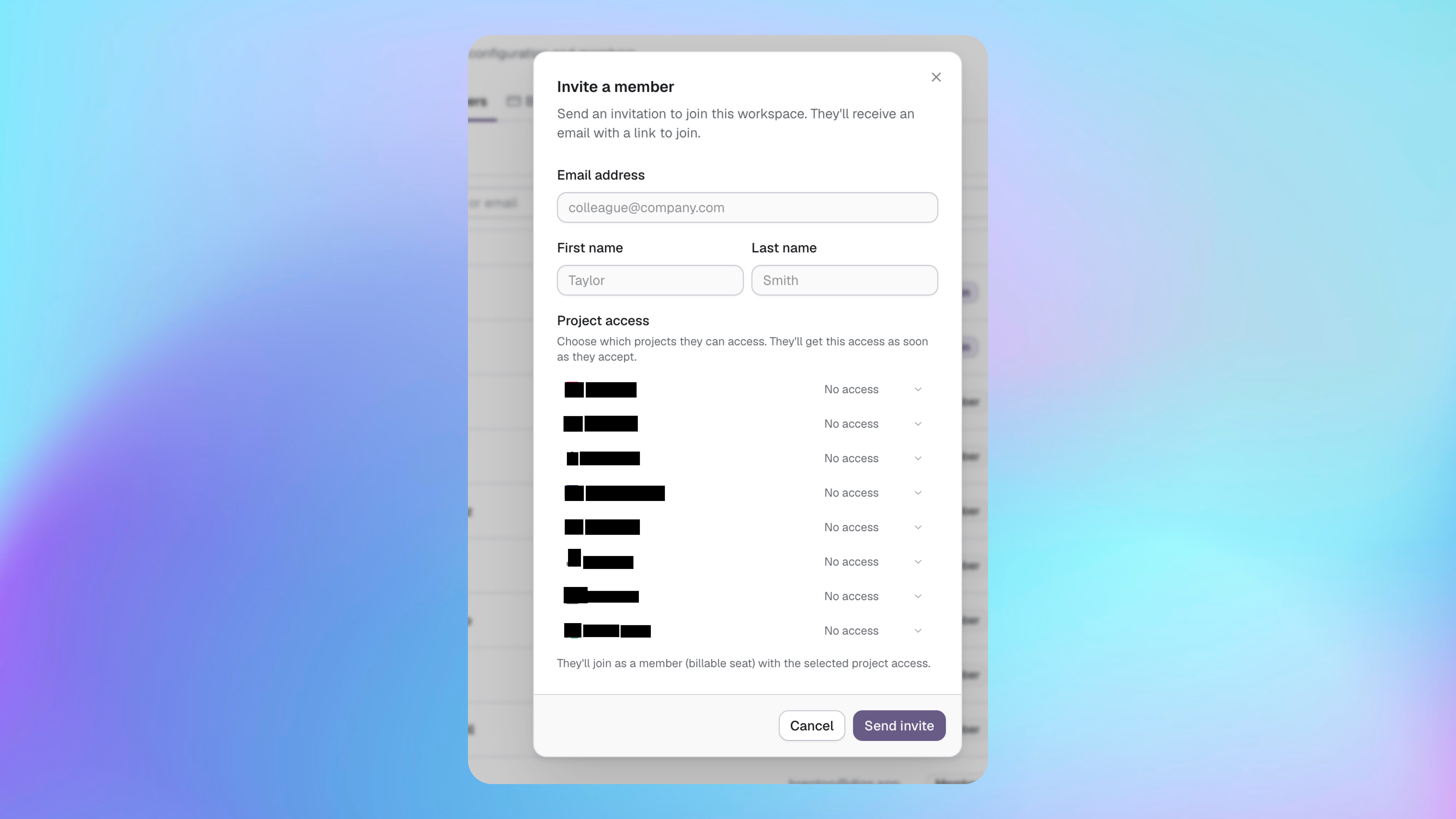
Open Workspace settings.
Select Members.
Select Add a member.
Enter their email address and name.
Choose their access for each project.
Select Send invite.
They receive an email with a link to join. Their selected project access begins after they accept the invitation.
Manage pending invitations
Pending invitations remain separate from active members until the recipient accepts.
Resend an invitation when the original email was missed. Revoke it when the person should no longer be able to join.
Change project access
Give each member access only to the projects they need.
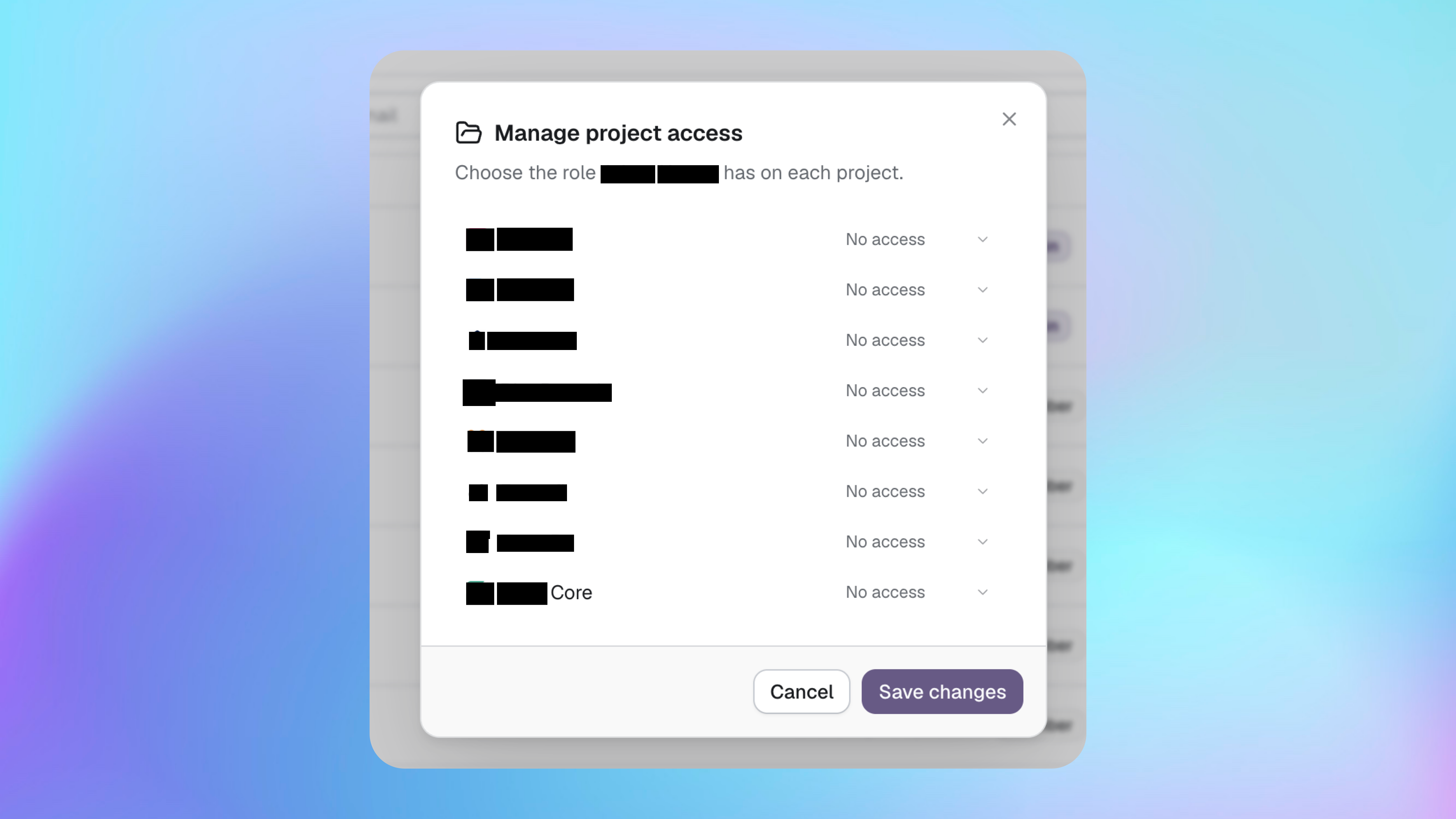
Open the member's menu.
Select Manage projects.
Choose their role for each project, or select No access.
Select Save changes.
The change applies to that project without changing the person's workspace role. Workspace admins cannot be limited this way because they automatically administer every project.
Change a workspace role
Only give workspace Admin access to people who need to manage the workspace, billing, integrations and all projects.
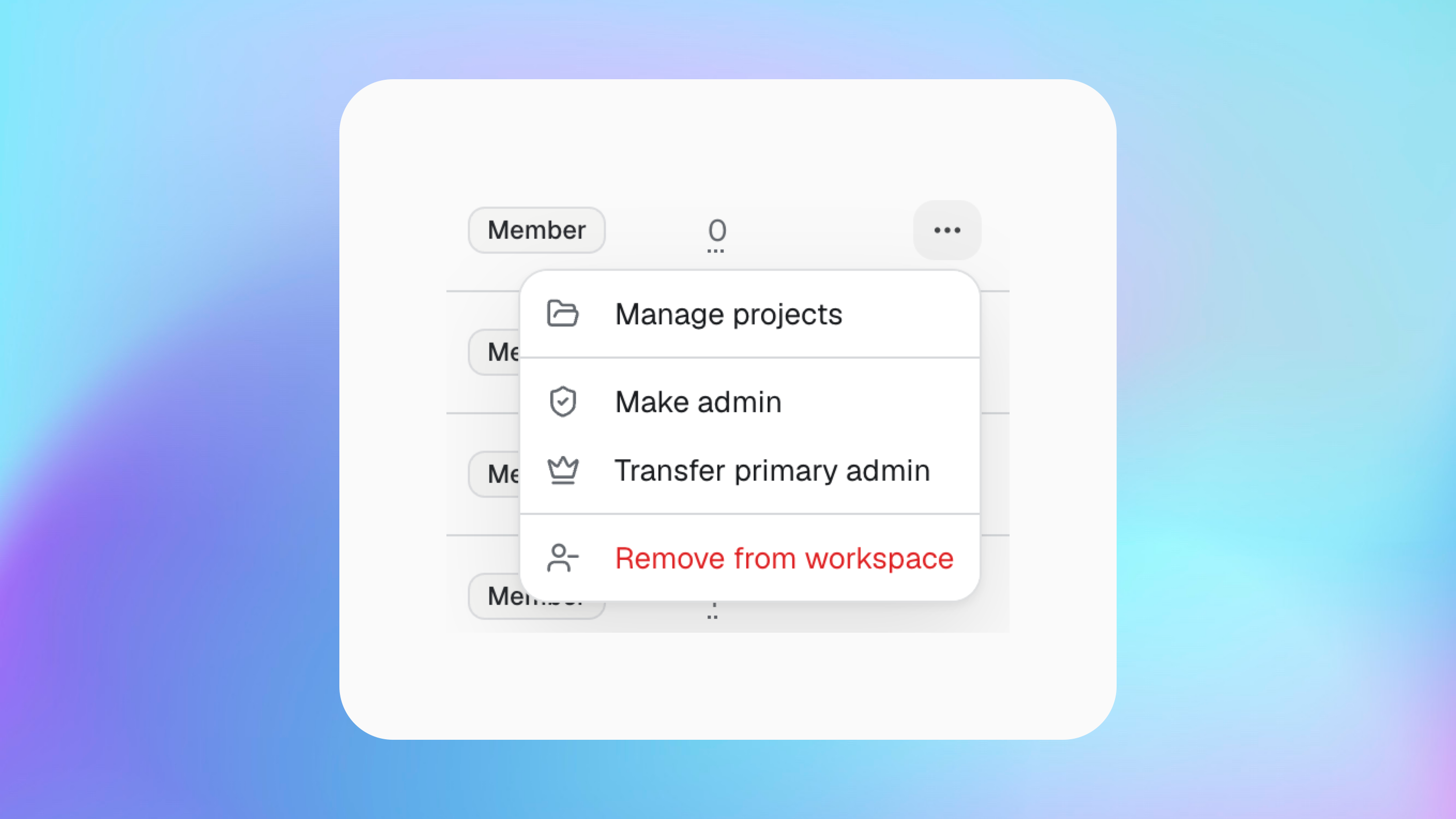
Open the member's menu and select Make admin. Their access expands to every project as soon as their workspace role changes.
Transfer primary admin
The primary admin owns the highest-level workspace responsibilities and must transfer them before leaving.
Open the menu for the person who should take ownership.
Select Transfer primary admin.
Confirm the transfer.
The recipient becomes a workspace Admin if they are not already one.
Remove a member
Removing someone ends their access to the workspace and its projects.
Open the member's menu.
Select Remove from workspace.
Confirm the removal.
Before removing someone, transfer any responsibility or access that the team still needs. Removing them does not delete the workspace or its projects.
Leave a workspace
You can leave a workspace when you no longer need access to it.
The primary admin must transfer primary admin responsibility first. After leaving, you lose access to projects that were available through that workspace.
Fix invitation and access problems
The invitation email did not arrive
A member cannot see a project
Open Manage projects for that member and give them a role on the project. A workspace Member does not receive access to every project automatically.
I cannot limit an admin to selected projects
Workspace admins automatically have Admin access to every project. Change their workspace role to Member before assigning selected projects.
The primary admin cannot leave
Transfer primary admin responsibility to another workspace member first.
Was this helpful?
Was this helpful?