
Open Custom MCP and confirm the service appears under Connected. Disconnect and add it again if its authorisation has expired.
External MCP integrations
External MCP integrations connect Buildprint Agent to other apps and services, including Gmail, GitHub, Google Drive, Linear and Slack.
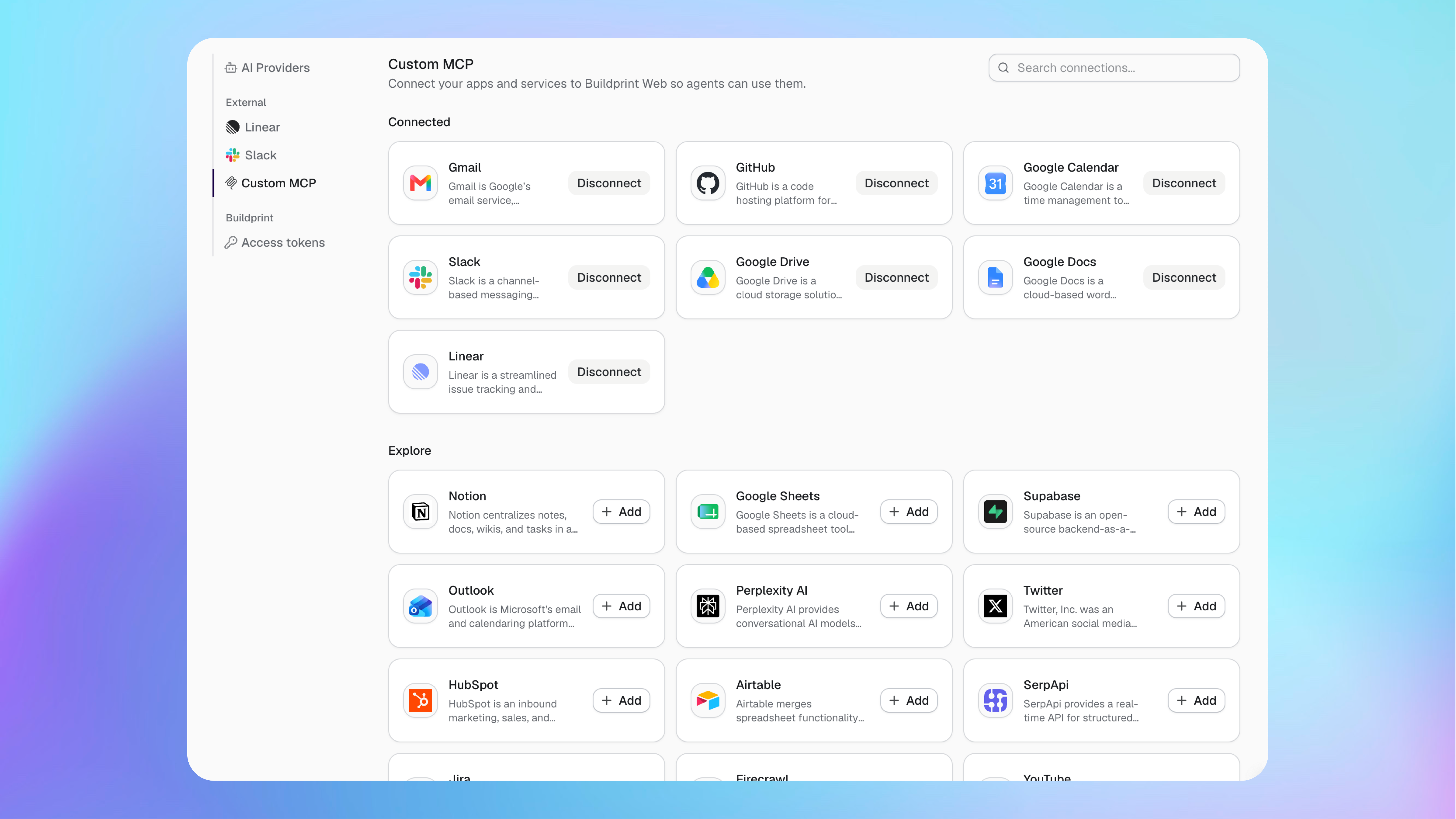
Add an integration
Connect only the services Agent needs for your work.
Open your workspace integration settings.
Select Custom MCP.
Find the service under Explore.
Select Add.
Complete the service's connection flow.
The service moves to Connected when setup is complete.
Use an integration in Agent
Mention the connected service in your request so Agent knows you want it used.
For example, ask Agent to find a document in Google Drive, inspect a GitHub repository or read an issue from Linear. You can also mention a relevant skill in the conversation.
The integration is installed in the Agent's virtual machine when it runs. Its available actions depend on the service and the access granted during connection.
Control access
External MCP integrations use the account and permissions approved during their connection flow.
Agent can access information available through the connected account. Use an account with only the access Agent needs.
Project permissions still control which Buildprint projects Agent can use. They do not reduce the permissions granted by the external service.
Disconnect an integration
Disconnect a service when Agent should no longer use it.
Find the service under Connected.
Select Disconnect.
Future Agent runs cannot use that connection. Connect it again if access is needed later.
Fix integration problems
Agent cannot use a connected service
Agent cannot find the information I expected
Check that the connected external account can access it, then name the service and the information you want in your Agent request.
An integration is missing
Search the services under Explore. Only integrations available in the catalogue can be added from this screen.
Was this helpful?
Was this helpful?