
Check that Scan on branch merge is enabled and the merge went into a selected target branch.
Radar automation and settings
Radar can automatically review changes whenever a Bubble branch is merged into one of your selected target branches.
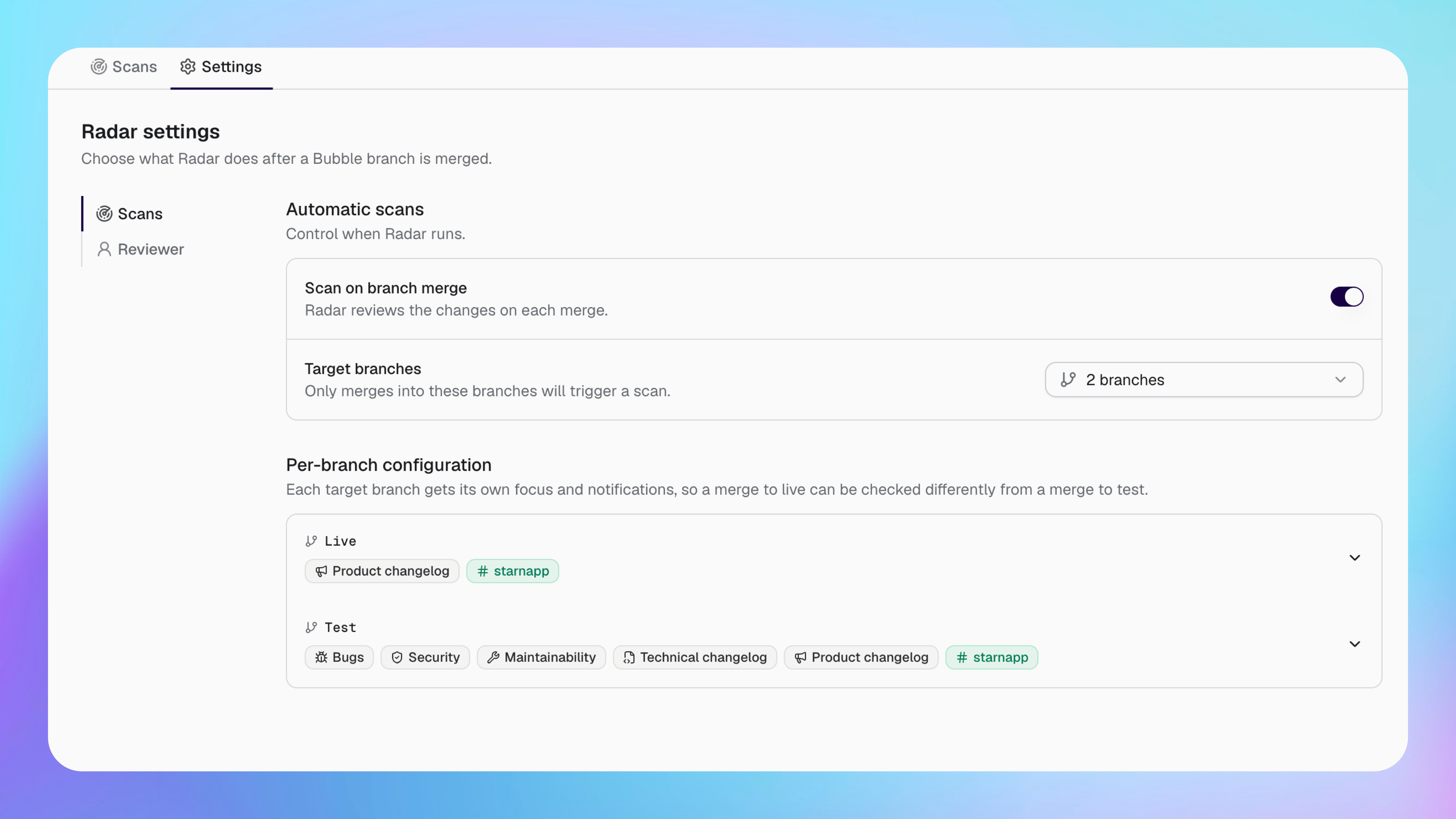
Enable automatic scans
You can use different scan settings for each target branch.
Open Radar and select Settings.
Open Scans.
Enable Scan on branch merge.
Open Target branches.
Select the branches that should trigger a scan.
Only merges into a selected target branch start an automatic scan. A merge into another branch does not.
Automatic scans will naturally increase your AI usage which consumes your AI provider's rate limits. It also consumes Buildprint agent runtime.
Configure each branch
Set a stricter review for important branches without applying the same settings everywhere.
Expand a branch under Per-branch configuration.
Select the scan focuses for that branch.
Choose its email or Slack notifications.
Save the settings.
For example, you can check bugs, security and maintainability on Test while sending only a product changelog after a merge to Live.
Choose the reviewer
Radar can assign the person who merged the branch as the reviewer.
Set a fallback reviewer for merges where Buildprint cannot match the person who merged to a workspace member. The fallback reviewer also keeps automatic reviews assigned when the original person is unavailable.
Set model priorities
A model priority list gives Radar another model to use when the preferred model is unavailable.
Put your preferred model first, then add fallback models in the order Radar should try them. Each non-Buildprint model needs a connected provider, and Buildprint models need available AI credits.
Send notifications
Notifications tell the right people when an automatic scan finishes.
Email sends the result to the configured recipients.
Slack sends a summary to the channel selected for that branch.
Connect your Slack workspace before selecting a channel. Buildprint must have access to the channel used for Radar notifications.
Fix automatic scan problems
No scan starts after a merge
An automatic scan has no reviewer
Choose a fallback reviewer in Settings > Reviewer. This reviewer is used when Buildprint cannot match the person who merged.
Radar cannot use the selected model
Reconnect its AI provider, check your Buildprint AI credits, or add another model to the priority list.
A Slack notification does not arrive
Check that Slack is connected, the correct channel is selected for the target branch, and Buildprint has access to that channel.
Was this helpful?
Was this helpful?