
The project may still be on the waitlist. Open Logs → View to check its current status.
Logs overview
Buildprint Logs gives you a faster way to understand your Bubble app’s server activity, workload, users, workflows, and errors.
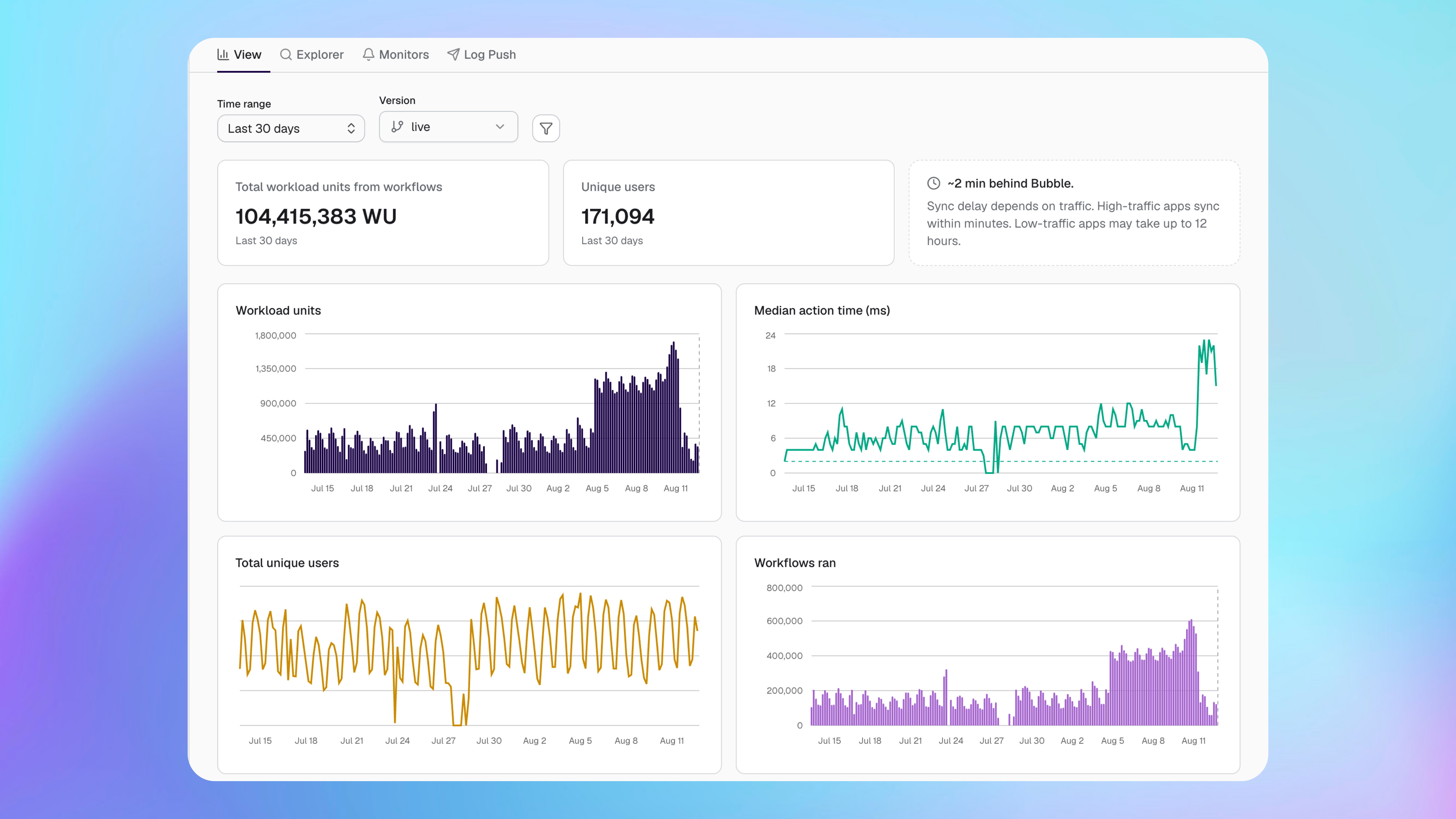
What Logs includes
The Logs area has four parts.
View shows the overall health and activity of your app.
Explorer lets you search individual Bubble log events and follow workflows.
Monitors alerts you when selected log conditions are met.
Log Push sends your logs to an external observability service.
Set up log sync
Buildprint Logs is currently available through a waitlist. We are gradually enabling it for apps on Bubble’s Growth plan and above.
[email protected] must have permission to view Logs and the required Bubble versions.
Join the waitlist from Logs → View. Buildprint will enable log sync for your project as rollout capacity becomes available. Explorer and Monitors become available after sync is enabled.
Understand sync delay
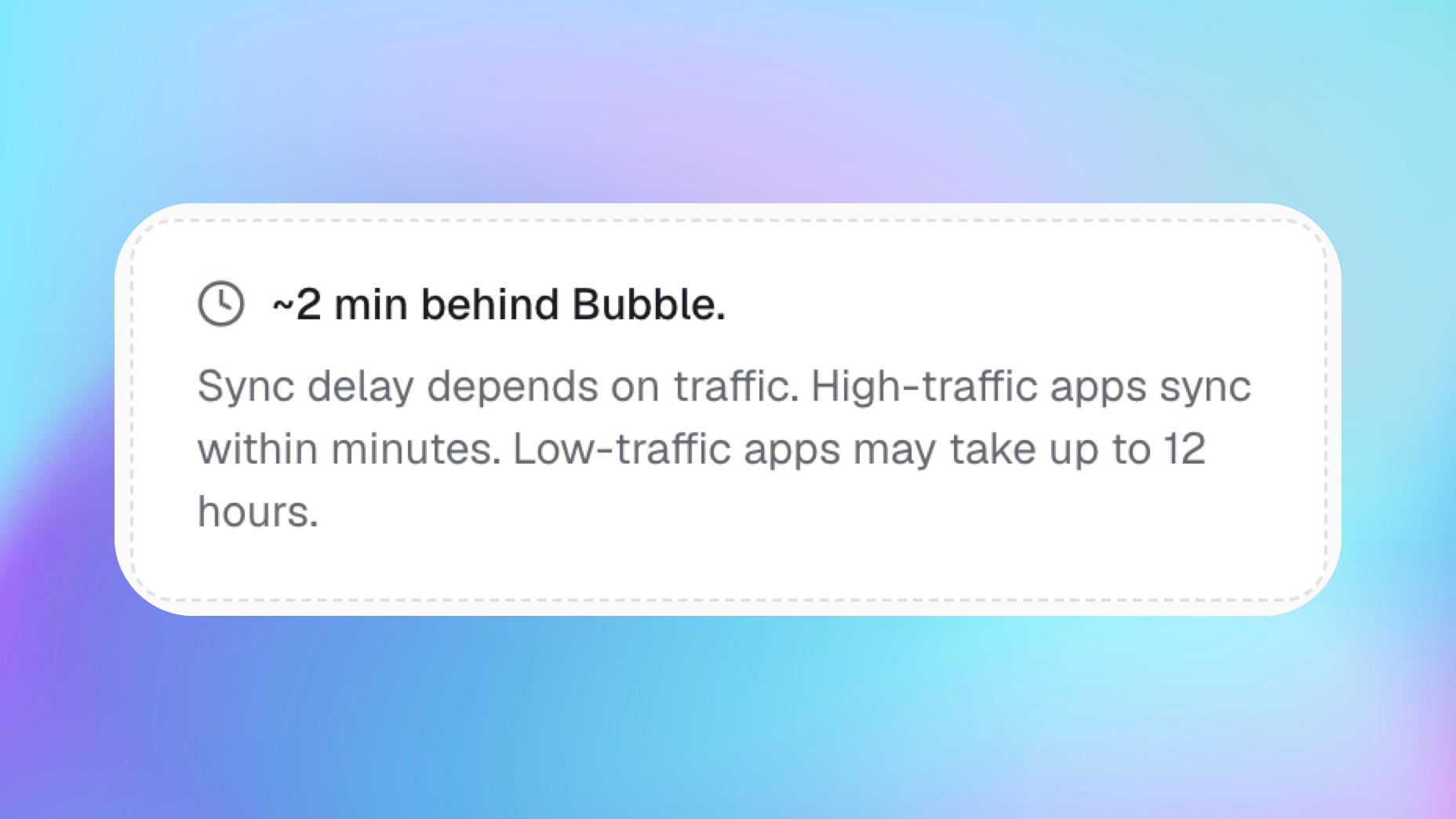
Logs do not appear in Buildprint immediately after Bubble creates them.
High-traffic apps normally sync within minutes. Low-traffic apps may take up to 12 hours as we reduce fetches to avoid excessive load on Bubble's platform.
Use Logs View
Use View to check app activity over a selected time range and one or more Bubble versions.
You can review:
Workload units: the Bubble workload used by completed workflow actions.
Unique users: the number of different users found in the logs.
Median action time: the typical time Bubble actions took to run.
Workflows ran: the number of workflow starts.
Errors and error rate: Bubble errors and their share of logged activity.
Top users by workload: the users linked to the most workload.
Filter the dashboard
Change the time range and Bubble versions at the top of View.
You can also filter by user email or Bubble Thing ID. User breakdowns are hidden while these filters are active because the results already relate to a specific user or record.
Log storage region
The managed Buildprint destination stores synced logs in the United States.
If you need logs stored in another region, add a custom Logpush destination that uses your chosen region. After you confirm that the custom destination is receiving logs, you can disable the managed Buildprint destination.
Explorer and Monitors depend on logs stored by Buildprint. If you disable the managed Buildprint destination, these features will not receive new logs.
Usage and limits
Your plan includes a monthly log allowance. If the project reaches that allowance, Buildprint pauses sync and emails the workspace owner with the available options.
Project admins can also pause sync. Existing synced logs remain available while sync is paused.
Troubleshooting
Logs are not available yet
No new logs are appearing
Check the sync delay shown in View. Low-traffic apps may take up to 12 hours. Also check for an action-required or permission warning.
Buildprint reports a Bubble permission problem
Give [email protected] Logs access and access to the required Bubble versions, then recheck the connection in Buildprint.
Sync has paused
Check whether an admin paused sync or the project reached its monthly log allowance. Existing synced logs remain available.
Was this helpful?
Was this helpful?