
Check that a project is selected and its setup is complete. Wait for attachments to finish uploading, or remove any failed attachment.
Using Agent
Use Agent to understand your Bubble project, plan work, and make changes through a conversation.
How Agent works
Buildprint runs the selected provider’s own agent harness behind the scenes. For example, a Codex model runs through the Codex harness, while a Claude model runs through Claude Code.
Each conversation runs inside its own virtual machine. This is a sandboxed cloud environment created specifically for that Agent conversation.
The virtual machine includes:
Buildprint tools for reading and working with your permitted Bubble project.
The native agent harness for the selected AI provider.
Any custom MCP connections you have enabled for that workspace.
A private filesystem where Agent can create and work with files during the conversation.
This setup gives Agent more than a chat window. It can inspect files, use tools, run commands, and complete multi-step work while the conversation is active.
Agent runtime
The time Agent spends running inside this virtual machine is called Agent runtime.
Runtime includes the time Agent spends thinking, reading files, using Buildprint or MCP tools, and running commands. It is counted whenever Agent is actively working, not only when it writes a reply.
Subagents do not contribute extra runtime, because they run in the main agent's environment.
Your plan includes an amount of Agent runtime. If you use more than the included amount, the extra runtime is charged as a usage-based overage. You can view your included allowance, current usage, and overage details in your workspace billing settings.
Agent runtime is separate from AI model usage. Buildprint models use workspace AI credits, while connected providers use the limits and billing of your provider account. If you use only connected providers like Claude, Codex, and Cursor, then the only cost of using Agent is agent runtime.
Start a conversation
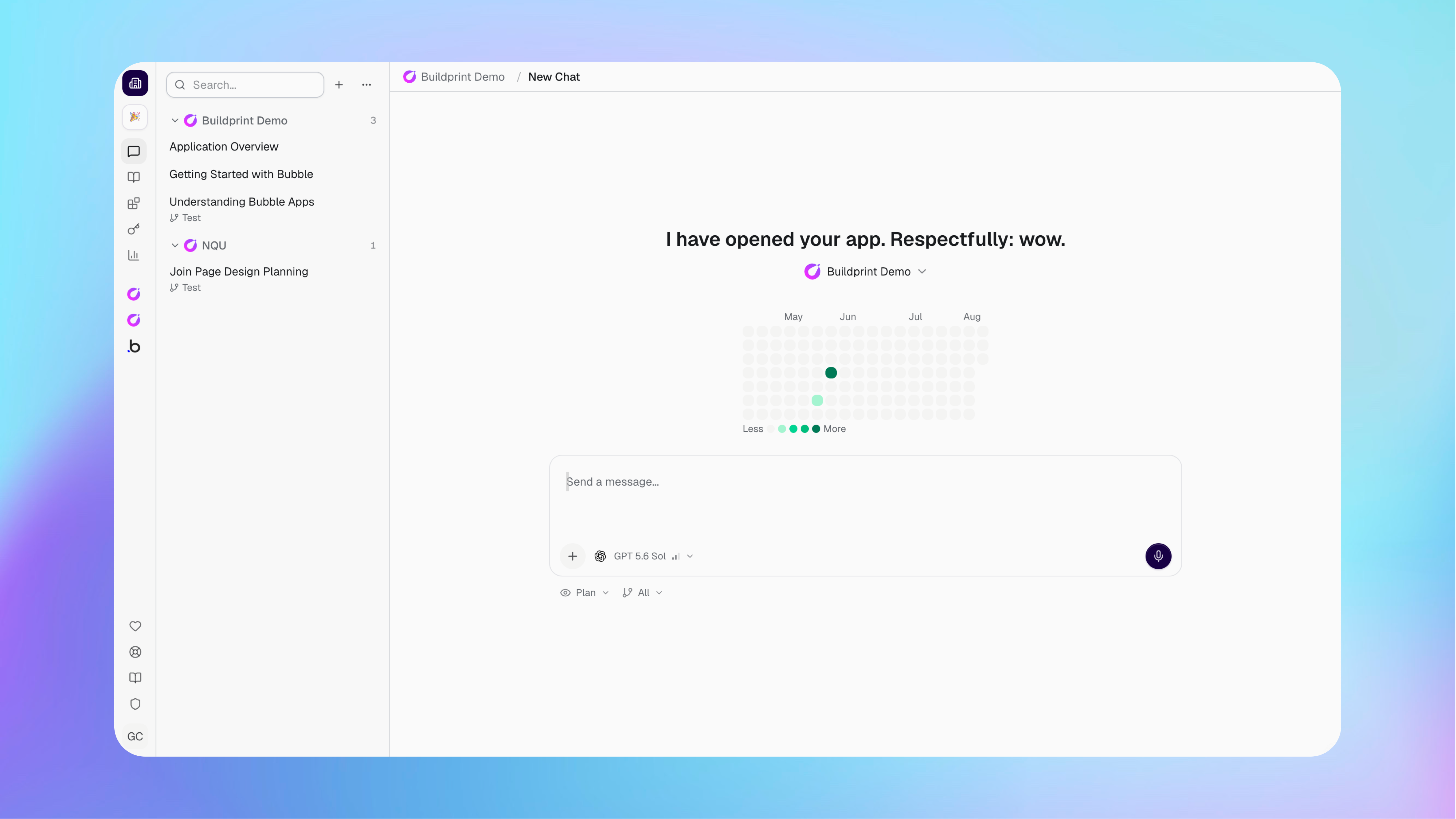
Select the Bubble project you want Agent to work with before you send a message.
Open Agent.
Select the project shown above the message box.
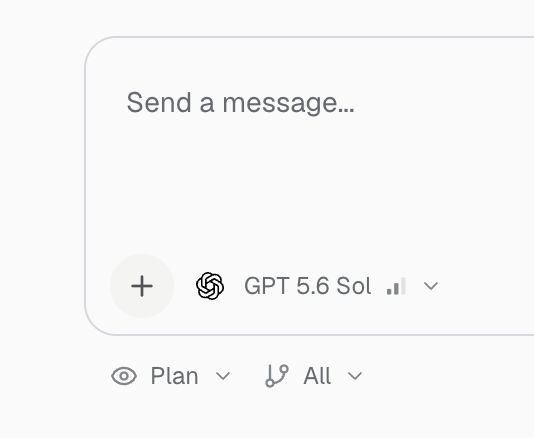
Choose an AI model and reasoning level.
Select Plan or Build.
Choose which Bubble branches Agent can use.
Describe what you want Agent to do, then send the message.
Choose a model
Select the model based on the task and the AI providers connected to your account.
The reasoning setting controls how much thinking the model uses. Higher reasoning can help with difficult tasks, but it can take longer and cost more.
Buildprint models use workspace AI credits. Models from other providers use your existing provider account connected under Integrations → AI Providers. These consume your existing provider's rate limits, and are not limited by Buildprint.
Recommendations
If you do not yet have an AI provider subscription, we currently recommend ChatGPT's $20/mo or $100/mo plan (as of August 12th, 2026). This is because it offers the best value for money in terms of quality and rate limits.
Based on our experience, we recommend the following as a good balance of rate limits:
Provider | Planning | Building |
|---|---|---|
Claude | Fable 5 or Opus 5 | Opus 5 |
Codex | GPT 5.6 Sol | GPT 5.6 Sol or GPT 5.6 Terra |
Cursor | Grok 4.6 | Grok 4.6 or Composer |
The selected provider is locked after the conversation starts. Start a new conversation to use a different provider.
Choose Plan or Build
Use Plan to investigate and use Build when you are ready for Agent to make changes.
Plan lets Agent read the permitted project context without changing the Bubble app.
Build lets Agent change permitted Bubble branches when your Buildprint and Bubble permissions allow it.
You can switch between Plan and Build during a conversation. Check the selected branches before sending work in Build mode.
Add useful context
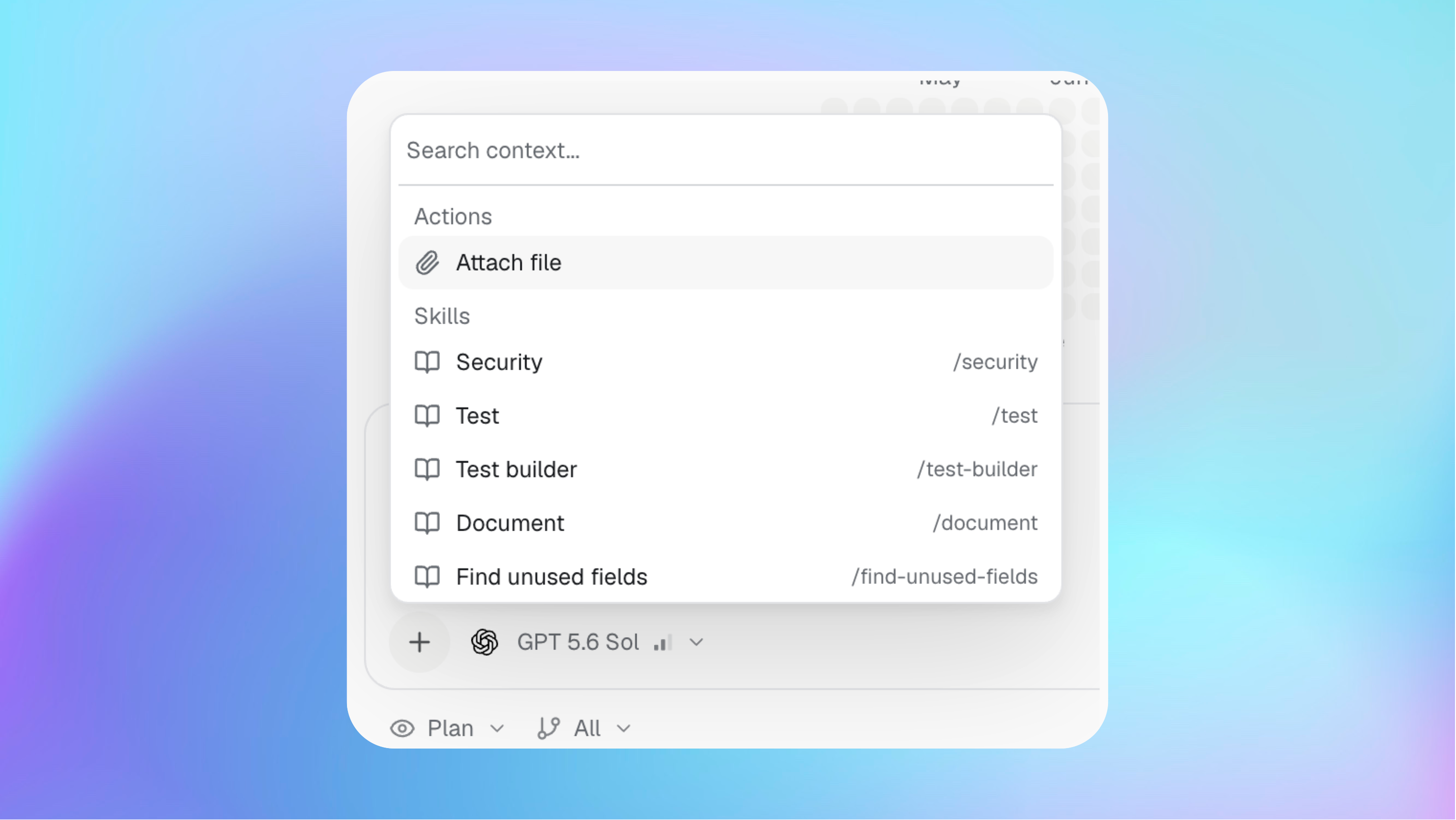
Agent already has access to the permitted context for the selected project. Add extra context when the task depends on a specific file, skill, page, branch, component, Radar scan, or Linear issue.
Click + to attach a file or select available context. You can also drag files into the message box, paste longer text as an attachment, or record a voice prompt.
Work with Agent
Agent shows its progress inside the conversation while it works.
Answer any questions Agent asks before it continues.
If Agent is already working, you can queue another message for the next turn or steer it by sending it immediately
Review attachments and results before accepting the work.
You can copy a conversation as Markdown, share a read-only link, or fork it into a separate conversation. A fork copies the conversation summary and attachments, but starts with a new Agent environment.
When to start a new conversation
Start a new conversation as soon you change to unrelated work or need a different AI provider. Long conversations can experience degraded performance and hallucinations.
You should also start again if the current conversation has become confused, the Agent environment is errored, or Buildprint tells you that the conversation cannot continue.
Forking
Buildprint allows you to fork a conversation. Behind the scenes, this will:
summarise your thread
bring across any files you attached
allow the agent to continue in a new thread, including with a different model provider
It will not include:
any uncommitted changes that haven't been applied to Bubble
files the agent has outputted
Troubleshooting
I cannot send a message
Build mode is not available
Your Buildprint role or Bubble collaborator permissions do not allow changes. Ask a project admin to update your access.
The model asks me to reconnect
Reconnect the AI provider under Integrations → AI Providers. Buildprint will tell you whether to retry the message or start a new conversation.
The conversation cannot continue
Start a new conversation. Add a short summary of the goal, what has already been done, and the next step you want Agent to take.
I experienced a BubbleScript error (e.g BSP5003)
If you experience a blocking error in a conversation, ask Buildprint to submit a bug report for you. BubbleScript is the next generation TypeScript language for Bubble and currently projects are opted in. To opt-out while we fix the issue and use the old version of Buildprint, go to your project settings and disable the BubbleScript option from Experimental features. This will take effect in new conversations. You do not need to contact support if you have asked Buildprint to submit a bug report.
I experience a model authentication or refresh token error
If you experience an error like Failed to refresh token: 400 Bad Request: Invalid 'refresh_token' then it can be resolved by disconnecting and reconnecting your Codex or Claude Code subscription from the Integrations tab, then starting a new conversation.
Was this helpful?
Was this helpful?