
Data Explorer is only available for Bubble app projects. It is not available for plugin projects.
Data explorer
Data explorer lets you browse and manage the Things in your Bubble app without opening the Bubble editor. It is available for app projects, but not plugin projects.
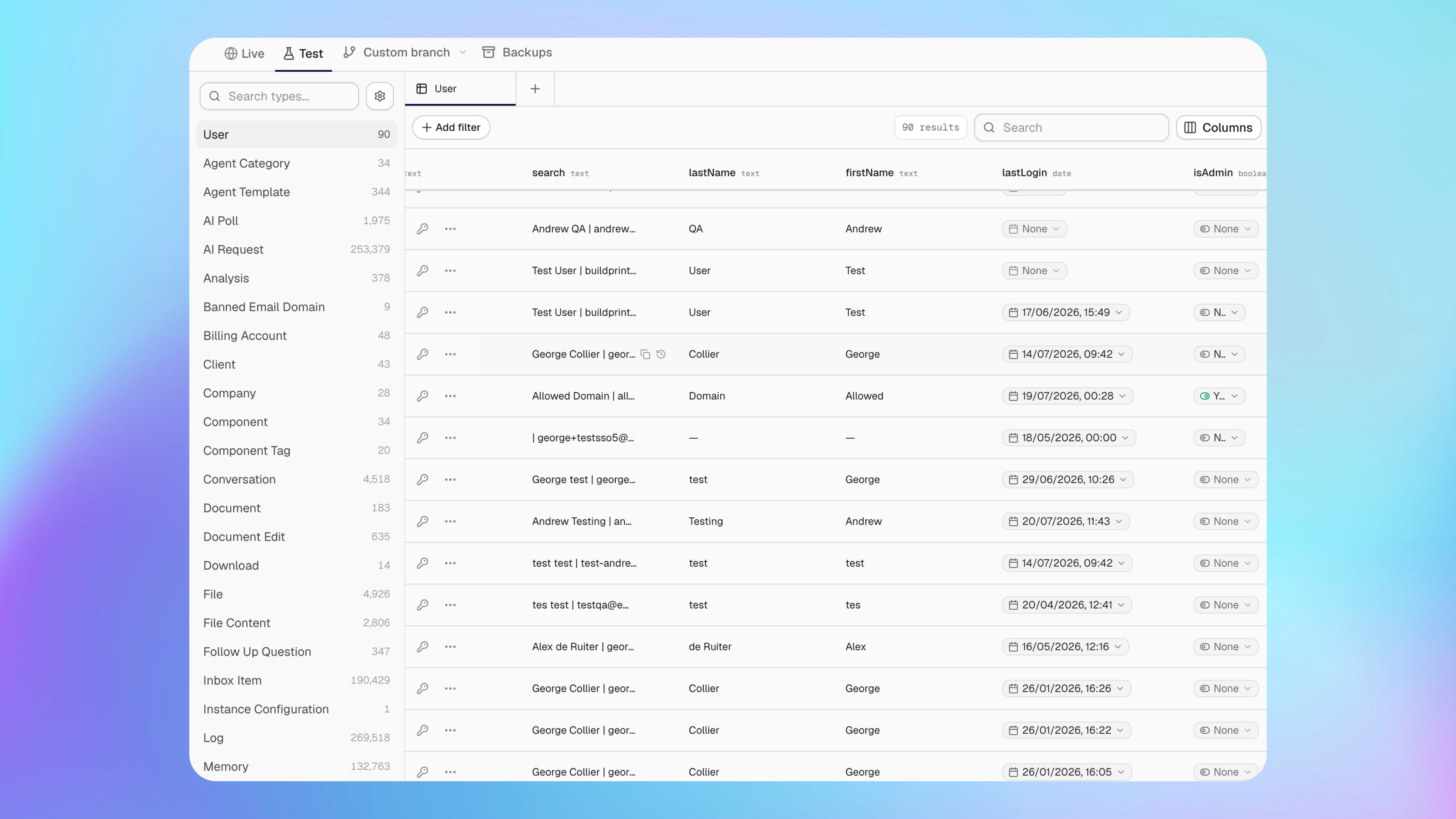
Choose a database
Use Live, Test or Custom branch at the top of Data Explorer to choose which Bubble database you want to view.
Open Data in your project.
Select Live, Test or a branch under Custom branch.
Select a data type from the left-hand list. You can search the list when your app has many data types.
Check the selected database before changing a record. Changes to Live data affect your live app.
Find records
Use search and filters to narrow the table to the records you need.
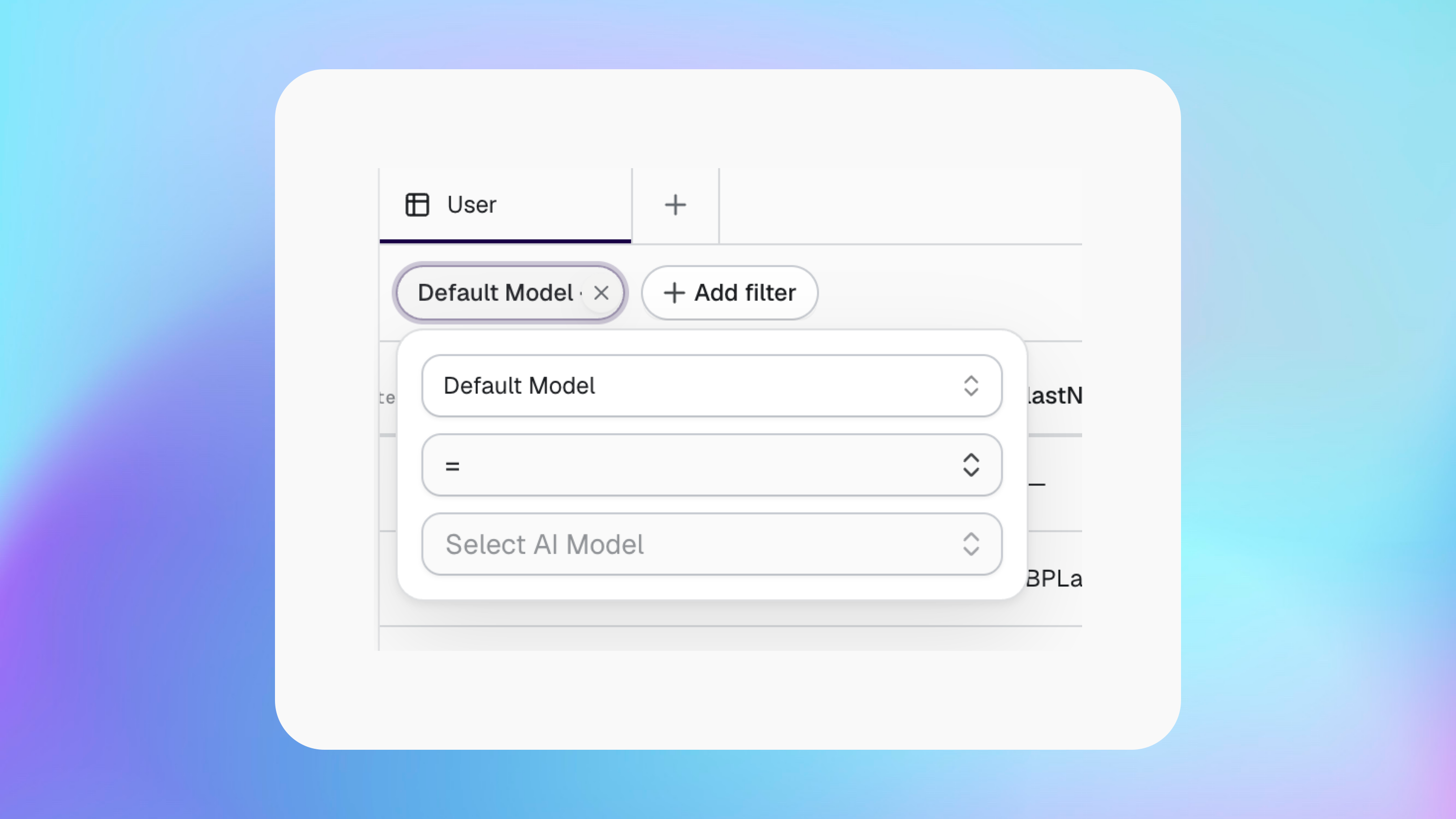
Enter a value in Search, then press Enter. Select Add filter to filter by a field. The available conditions depend on the field type, such as text, date or yes/no.
Select a column heading to sort its values. Select it again to change the sort direction.
Choose which fields to show
Select Columns to show, hide, search and reorder fields.
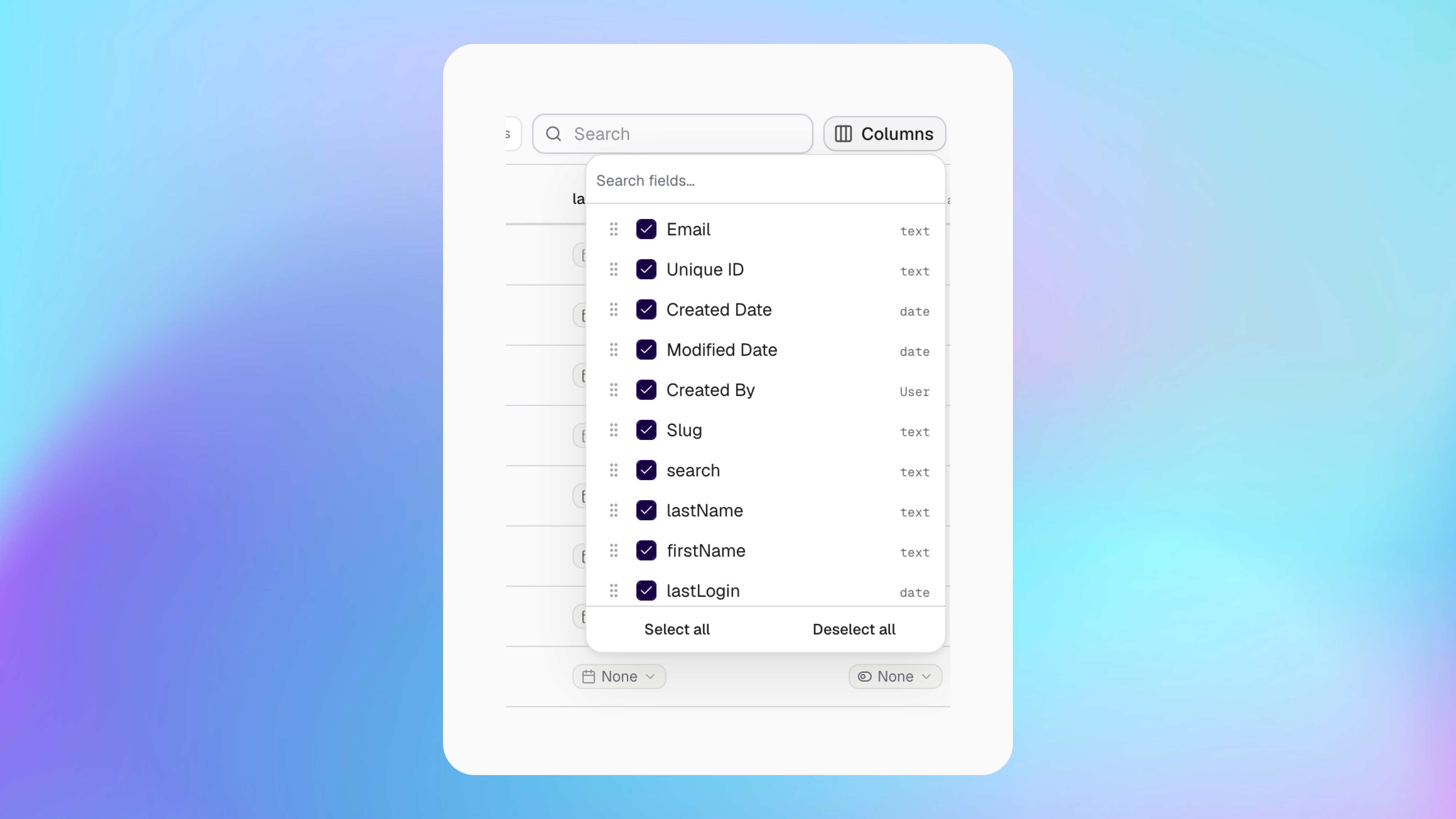
You can also resize columns in the table. This makes large data types easier to work with without changing your Bubble data.
Save a view
A saved view remembers your filters, sorting and columns for one database and data type.
Select the plus icon beside the current view to create one. A private view is only visible to you. A shared view is available to other people with access to the project.
Changes to the active view save automatically. Notes and pinned records are only available when you have an active saved view.
View and change a record
Select a row to open the complete record and view its fields in one place.
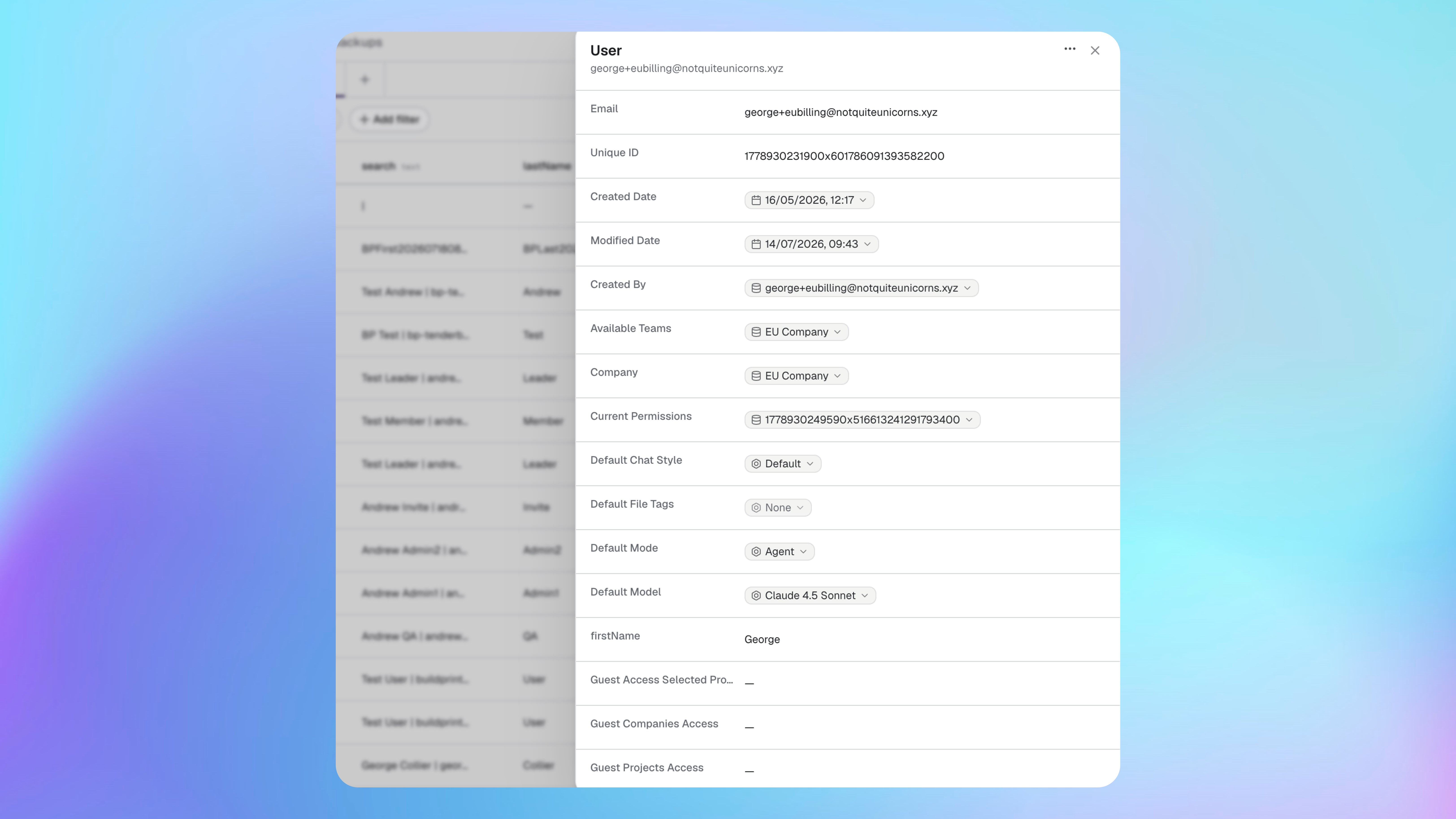
Fields can contain text, numbers, dates, yes/no values, option sets, lists or links to other records. Select a linked record to preview or open it.
If you have permission to edit data, you can change supported values in the table or record panel. Buildprint returns the old value if a change fails.
The field history can show earlier values when Buildprint Logs is enabled. It may not include changes made before log sync started. It is not guaranteed to include all changes and functions on a 'best effort' approach.
Delete a record
Deleting a record removes it permanently from the selected Bubble database.
Open the record.
Open the record menu and select Delete.
Confirm the deletion. Live records require an additional confirmation.
Run your app as a user
For records in the Bubble User data type, Run as opens your app as that user. You need both View and Run as access in Bubble.
If data does not appear
I cannot see Data Explorer
I cannot edit or delete a record
Check your Buildprint project role and the database access granted to Buildprint in Bubble. Read-only access lets you inspect records but not change them.
A linked record only shows an ID
Choose a primary field for that data type in Data Explorer settings. Buildprint will use that field as the record label when possible.
Was this helpful?
Was this helpful?