
Check that Linear is connected and the issue's team is mapped to a Buildprint project.
Linear
Connect Linear to run Buildprint Agent from issues, link Linear teams to Bubble projects and track a change as its branch is merged.
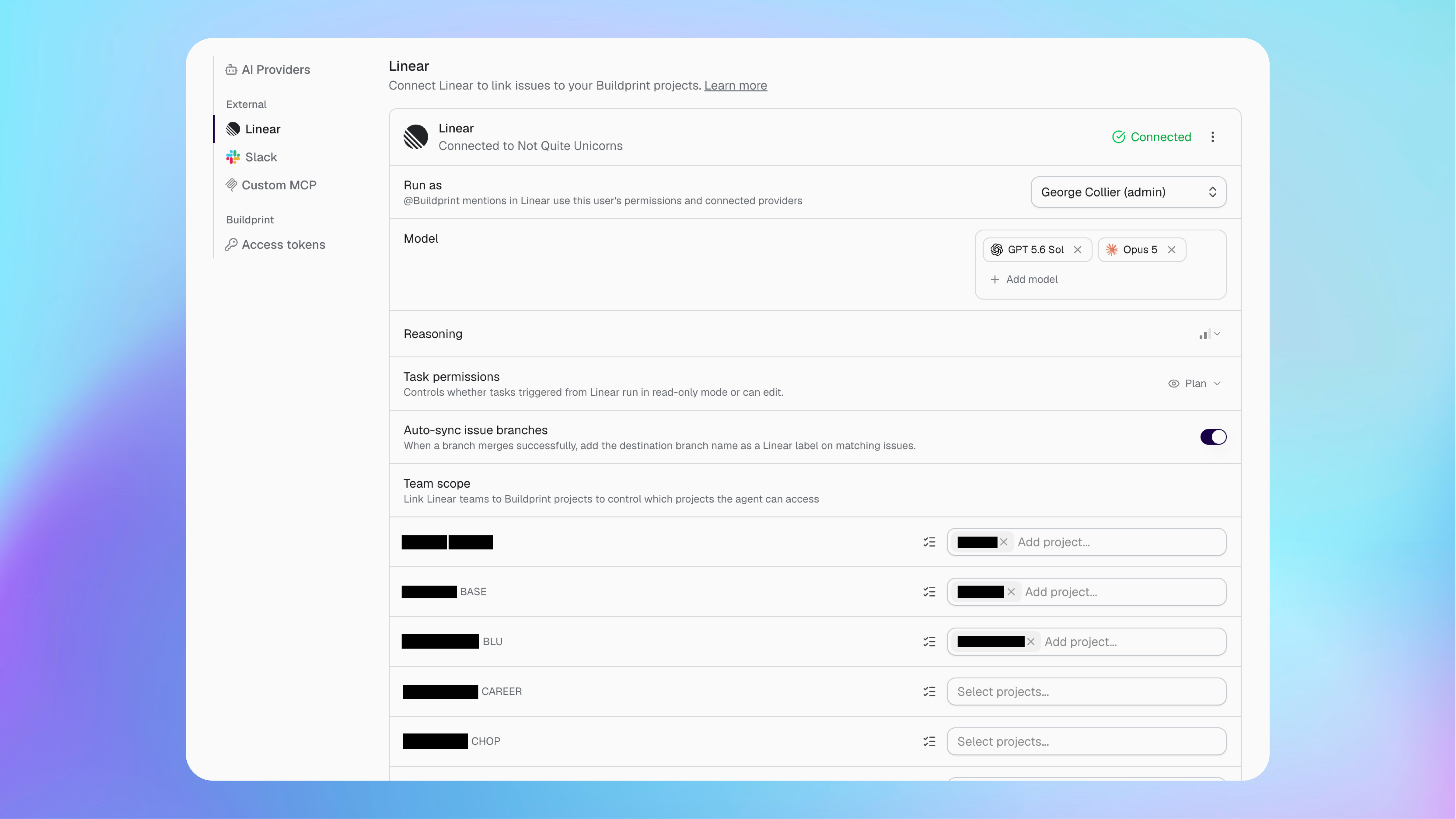
Connect Linear
You need permission to install integrations in the Linear organisation and manage Buildprint integrations.
Open your workspace integration settings.
Select Linear.
Connect the Linear organisation.
Approve the requested Linear access.
Configure the Linear Agent
The Linear Agent runs with the Buildprint identity and permissions selected in its settings.
Run as controls which member's permissions and providers are used.
Model sets the models available for issue tasks.
Reasoning controls how much reasoning the Agent uses.
Task permissions chooses Plan mode for read-only work or Build mode for edits.
Build mode can change mapped Bubble projects and their data. Use Plan mode when Linear should only investigate or prepare a plan.
Map teams to projects
A Linear team can only use the Buildprint projects assigned to it.
Find the team under Team scope.
Select one or more Buildprint projects.
Repeat this for each Linear team that should use Agent.
Keep mappings narrow so an issue cannot accidentally target an unrelated project.
Use Agent from an issue
Mention @Buildprint in a mapped Linear issue and describe the work you want done.
Include the expected outcome and Bubble branch when it matters. Agent replies through the issue and uses the mapped project, selected model and configured task permissions.
Track Bubble branches with labels
Branch labels show which Bubble branch contains the work for a Linear issue.
Before using branch sync, create test, live and staging labels in Linear when those branches exist in your release process. Buildprint can add an existing label to an issue, but it cannot create a missing label.
Enable Auto-sync issue branches in the Linear integration settings.
Add the source Bubble branch name as a label on the Linear issue. For example, add the feature branch label used for that issue.
Merge that branch into another branch in Bubble.
Buildprint adds the destination branch name as a label on the same Linear issue.
For example, an issue can start with its feature branch label. When that branch is merged into Test, Buildprint adds test. When Test is deployed to Live, Buildprint adds live.
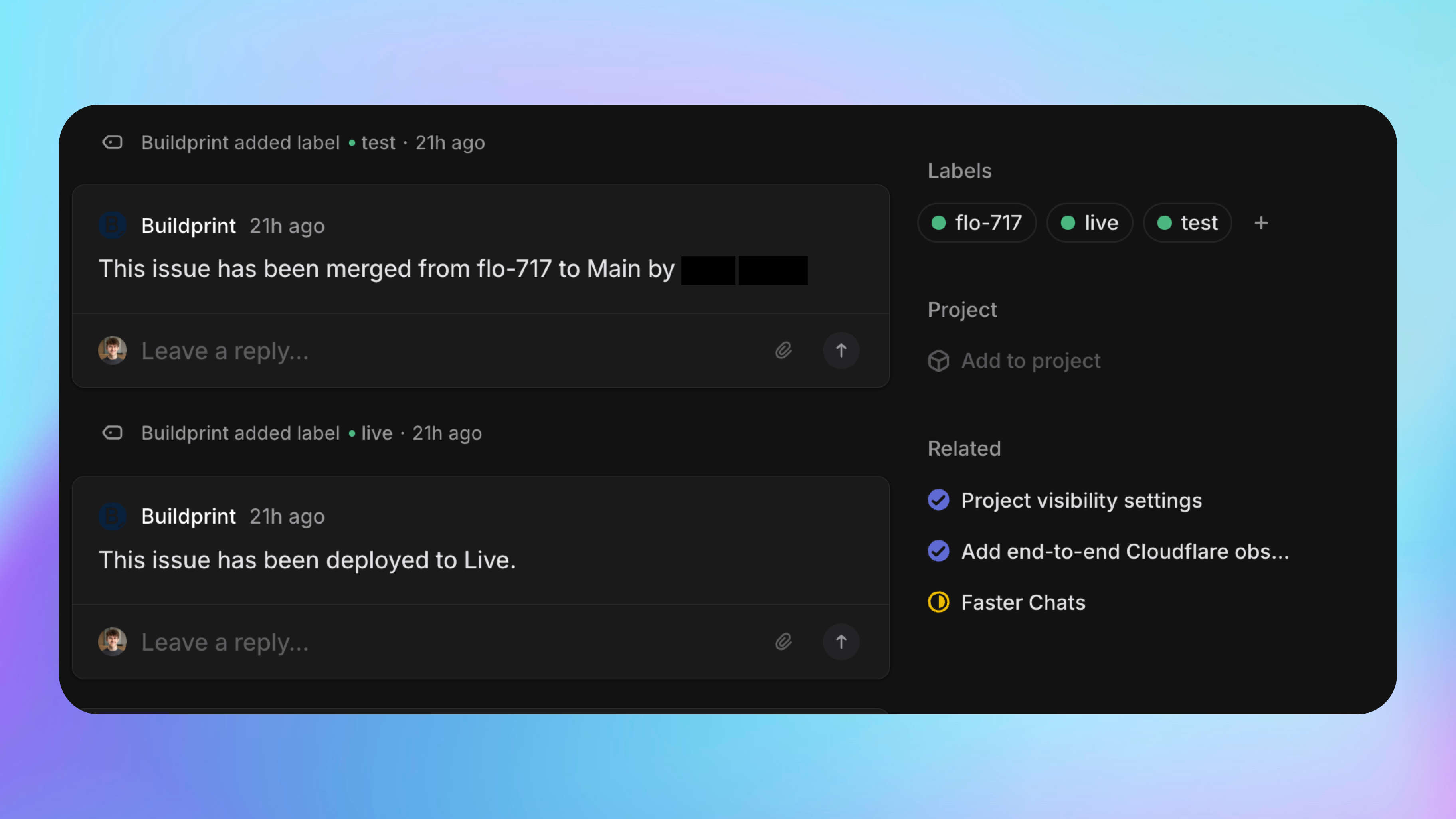
Buildprint also posts a merge update on the issue, so the team can see where the work has been deployed.
Fix Linear problems
Buildprint does not respond in an issue
Agent uses the wrong project
Review the issue team's mappings under Team scope. Remove projects that the team should not use.
Agent cannot edit the project
Check that Task permissions uses Build mode and that the member selected under Run as has editing access to the mapped project.
The destination branch label is not added
Check that Auto-sync issue branches is enabled, the source branch label is already on the issue, and the destination label already exists in Linear. Buildprint cannot create a missing test, live or staging label.
Was this helpful?
Was this helpful?